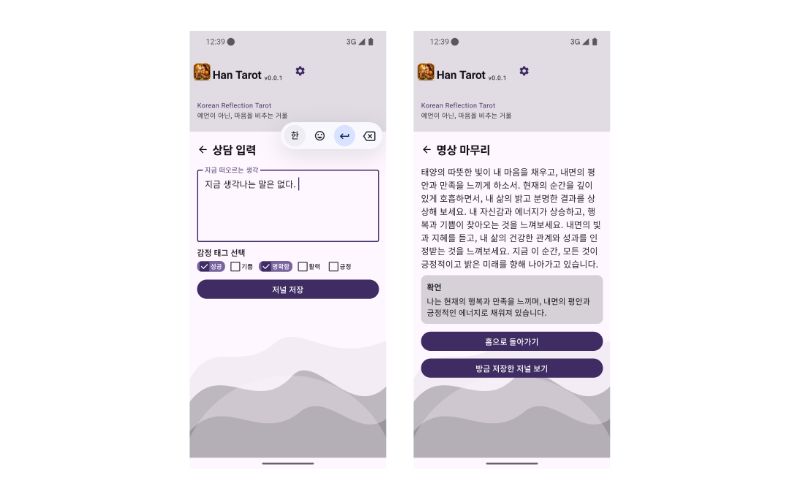
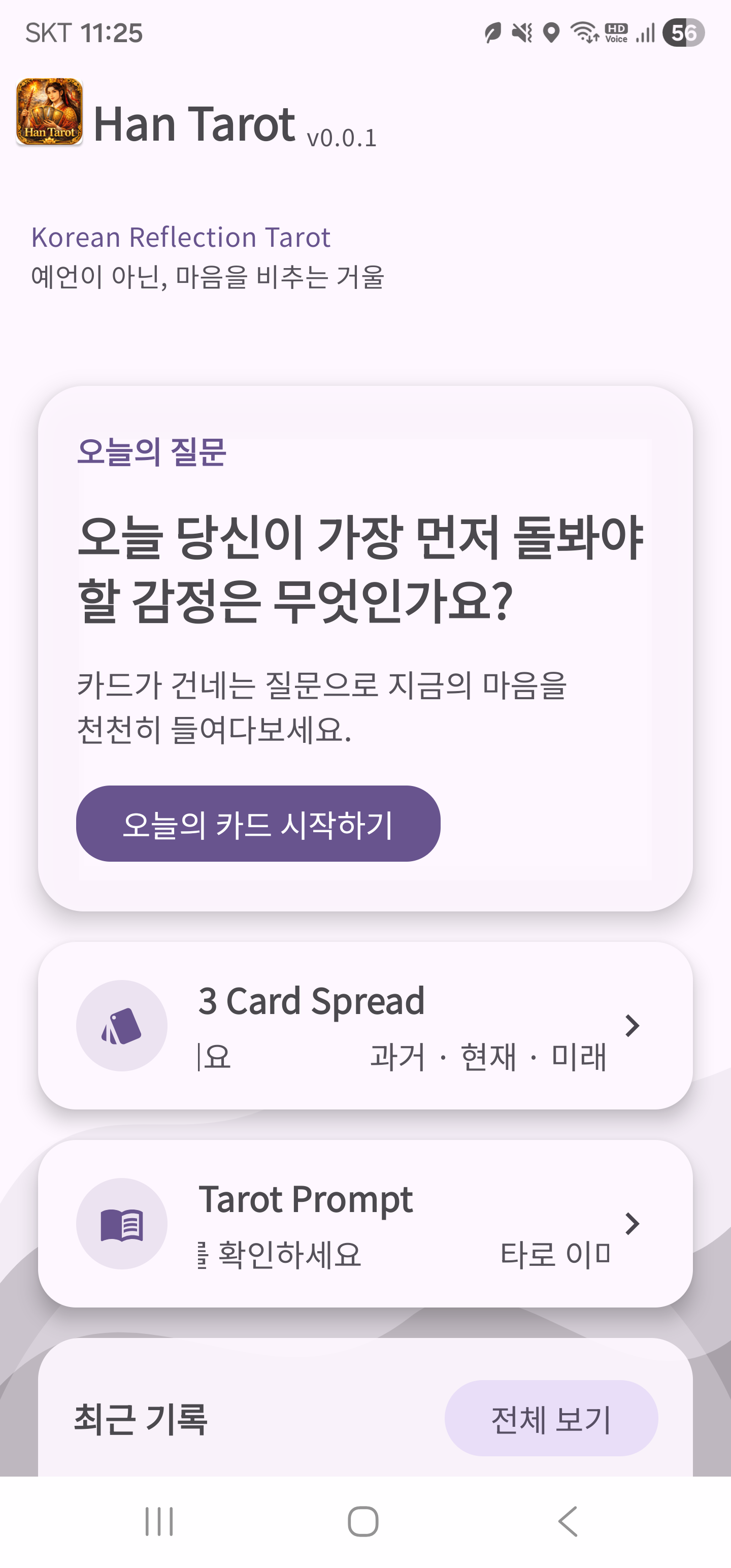
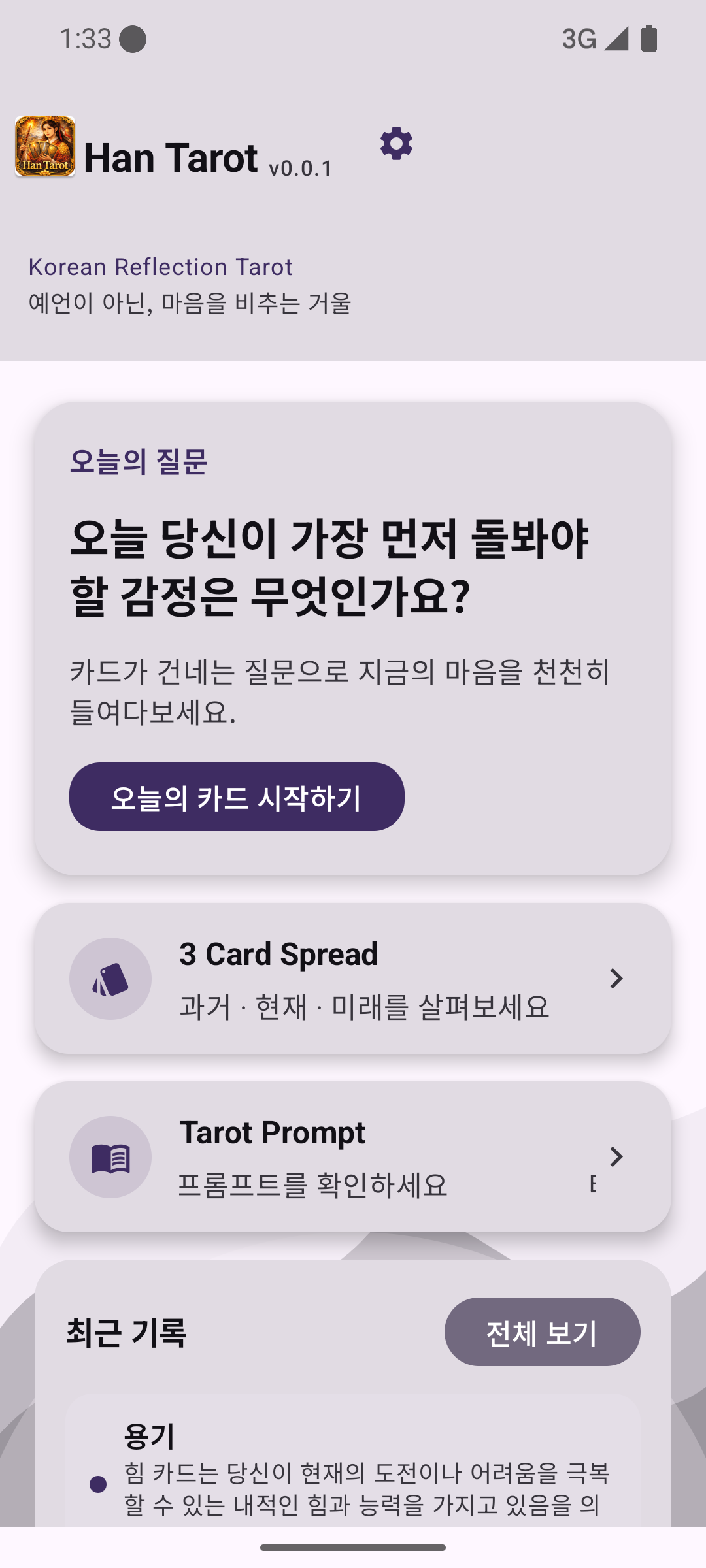
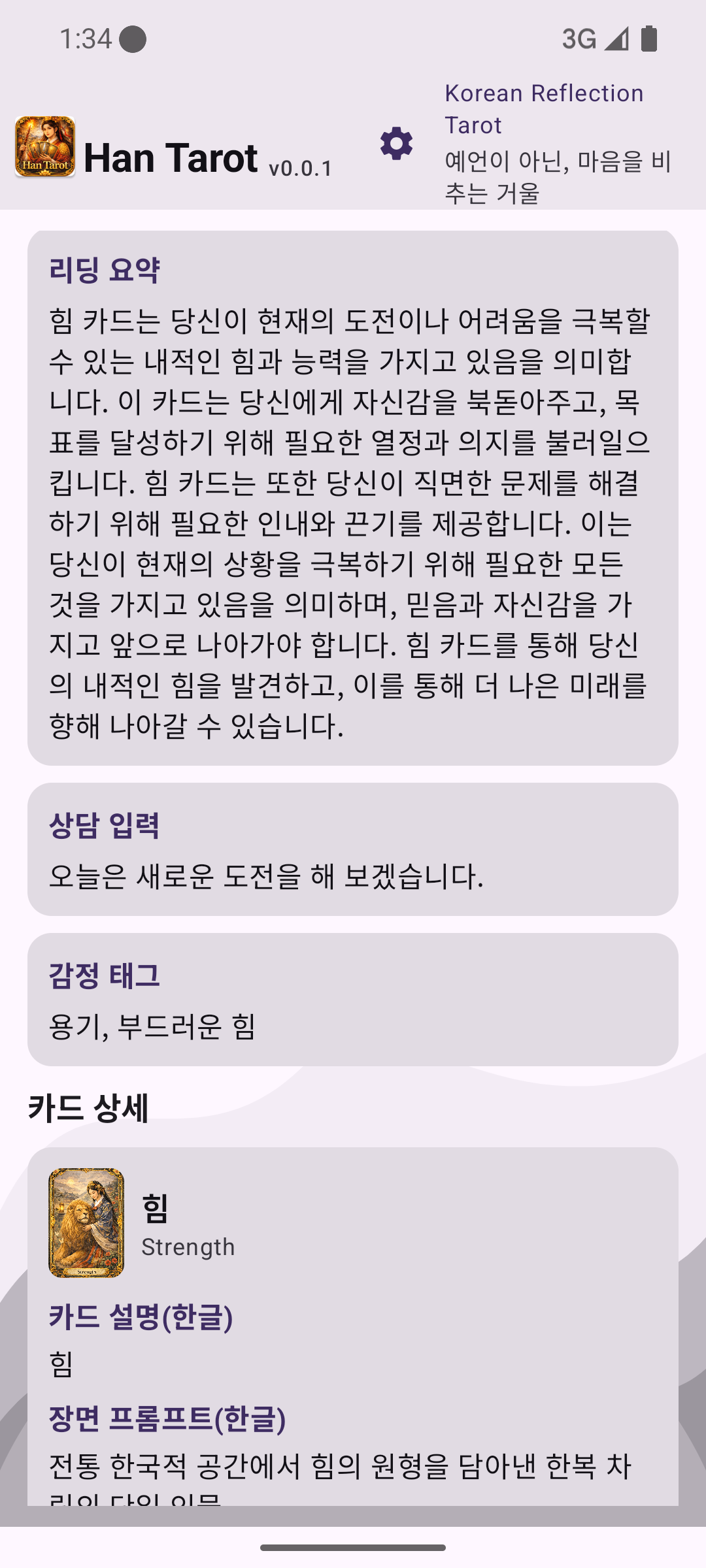
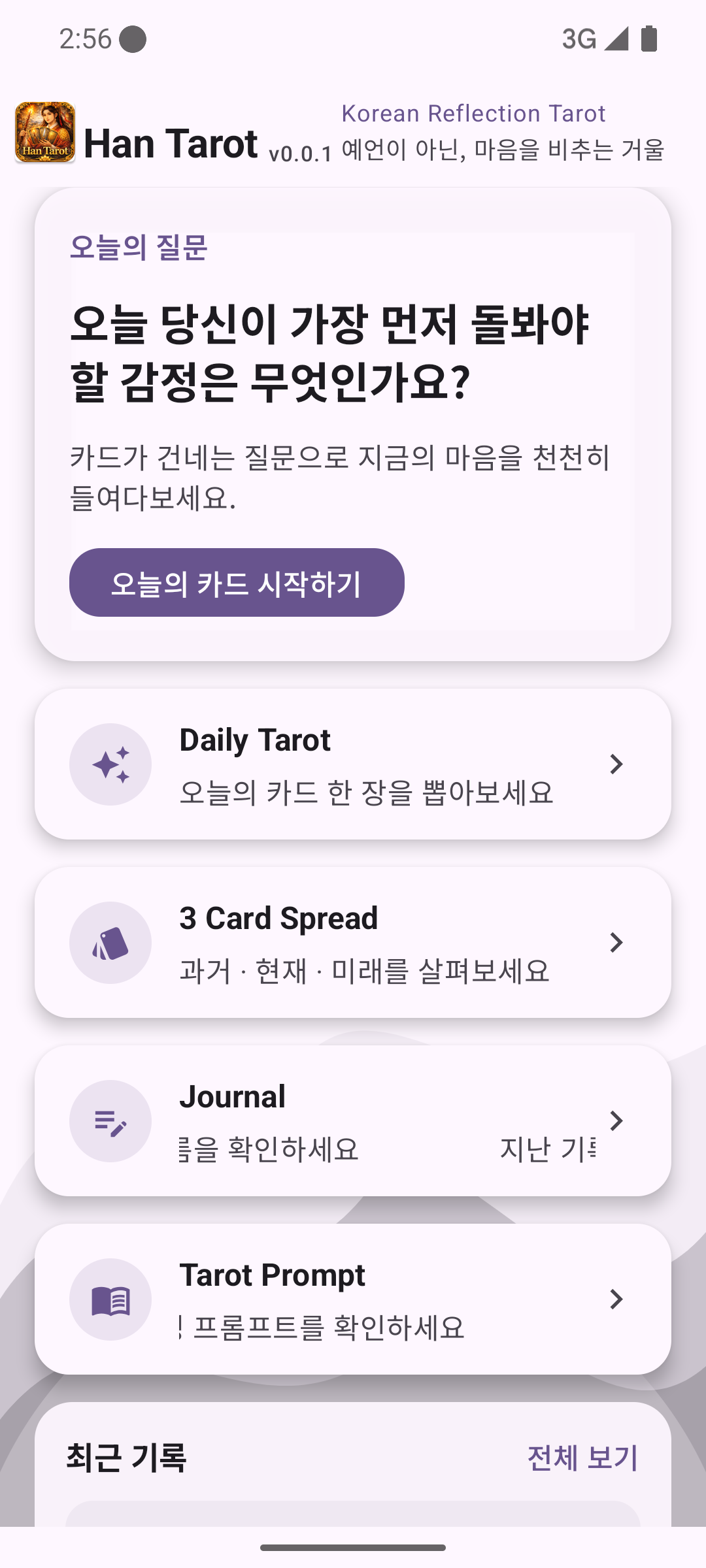
실제 기기에서는 제조사 배터리 정책이나 정확한 알람 정책(Android 12+)에 따라 시각 오차가 일부 발생할 수 있으므로 추후 실기기 확인이 필요하다.
필요 시 다음 단계로 알림 클릭 시 특정 화면/탭으로 직접 이동하는 개선도 가능하다.
2026-04-03 작업 이력
작업 개요
오늘은 layoutVersion 제거 이후 현재 프로젝트에 남아 있는 XML UI 사용 지점을 다시 정리하고, 향후 Compose 중심 구조로 전환하기 위한 계획을 정리했다.
2026-04-03 추가 반영: 이후 후속 정리를 진행하면서 SettingsActivity2.kt, settings_activity.xml, root_preferences.xml, activity_setting.xml, core/kakao/kakaoToast.kt, view_toast.xml까지 모두 제거되었고, 관련 TODO도 완료 처리했다.
1. 당시 기준 XML 사용 지점 정리
실제 사용 중인 layout
app/src/main/res/layout/settings_activity.xml
presentation/option/SettingsActivity2.kt에서 setContentView(...)로 사용
설정용 PreferenceFragmentCompat를 담는 컨테이너 역할
app/src/main/res/layout/notify_setting.xml
LoginActivity.kt에서 NotifySettingBinding으로 사용
알림 권한 안내 다이얼로그 내부 이미지 영역
app/src/main/res/layout/view_toast.xml
core/kakao/kakaoToast.kt에서 inflate 하여 사용
커스텀 Toast + 광고 배너 표시 역할
XML 기반 설정 리소스
app/src/main/res/xml/root_preferences.xml
SettingsActivity2.kt의 PreferenceFragmentCompat에서 사용
kakao_use_ty, monthlydate, alarmTime 설정 항목 관리
정리 후보
app/src/main/res/layout/activity_setting.xml
현재 코드/Manifest 기준 직접 사용 흔적이 없어 보이는 잔존 XML
추후 실제 참조 여부를 다시 확인한 뒤 삭제 후보로 관리
2. 당시 기준 Compose 전환 방향
1단계: 로그인 권한 안내 XML 제거
notify_setting.xml 기반 다이얼로그를 Compose AlertDialog로 전환
LoginActivity.kt 내부에서 ViewBinding 없이 이미지와 버튼을 Compose로 직접 구성
로그인 화면을 Compose 흐름으로 더 일관되게 정리
2단계: 설정 화면 XML 의존 축소
현재 SettingsActivity2.kt + settings_activity.xml + root_preferences.xml 조합을 우선 유지하면서 동작을 정리
이후 presentation/composes/SettingScreen.kt 쪽으로 설정 UI를 점진적으로 이동
최종적으로는 설정 값 변경, 저장, 요약 표시를 Compose 화면에서 직접 처리하는 방향 검토
3단계: 커스텀 Toast 구조 개선
view_toast.xml 기반 커스텀 Toast 사용 범위를 재검토
단순 안내 메시지는 Compose Snackbar 또는 화면 내 상태 기반 메시지로 대체 검토
광고가 포함된 토스트는 사용자 경험과 정책 관점에서 별도 UI 방식으로 재설계하는 것이 더 안전함
4단계: 미사용 XML 정리
activity_setting.xml처럼 현재 직접 사용되지 않는 XML은 실제 참조 여부를 다시 확인 후 제거
XML 제거 시 함께 정리 가능한 문자열/리소스도 같이 점검
3. 전환 시 주의사항
기존 SharedPreferences 키(kakao_use_ty, monthlydate, alarmTime)는 그대로 유지하는 방향이 안전함
설정 화면 전환 시 현재 SettingScreen.kt에서 수행하는 알림 재예약(DailyReminderScheduler.schedule(...)) 동작이 동일하게 유지되어야 함
로그인/오류 안내 UI처럼 기존 헬퍼를 제거하는 경우에도 실제 사용자 피드백 흐름은 유지되어야 함
Compose 전환은 한 번에 전체 변경보다, 로그인 안내 → 설정 화면 → 커스텀 토스트 순으로 점진 전환하는 방식이 안전함
4. 메모
메인 화면 흐름은 Compose 중심으로 정리되었고, 지원 UI에 남아 있던 XML 의존도도 단계적으로 제거하는 방향으로 진행했다.
따라서 이후 구조 개선 작업은 “남아 있는 레거시 UI/호환성 코드 정리”를 목표로 잡고 점진적으로 진행하는 것이 적절하다.
5. 다음 작업 TODO
LoginActivity.kt의 NotifySettingBinding 기반 권한 안내 다이얼로그를 Compose AlertDialog로 전환
notify_setting.xml 제거 후 권한 안내 UI가 기존과 동일하게 동작하는지 확인
SettingsActivity2.kt + settings_activity.xml + root_preferences.xml 구조를 SettingScreen.kt 중심으로 통합할 수 있는지 설계 정리
설정 화면 전환 시 kakao_use_ty, monthlydate, alarmTime 저장 키를 그대로 유지하도록 검토
설정 저장 이후 DailyReminderScheduler.schedule(...) 재호출 흐름이 Compose 설정 화면에서도 동일하게 유지되도록 점검
core/kakao/kakaoToast.kt의 view_toast.xml 사용 부분을 정리하고 로그인 오류 안내를 기본 Toast로 단순화
광고가 포함된 커스텀 Toast는 정책/UX 측면에서 별도 UI로 둘 필요가 있는지 검토 후 제거
activity_setting.xml의 실제 참조 여부를 최종 확인한 뒤 삭제 여부 결정
XML 제거 시 함께 정리 가능한 문자열, drawable, binding 참조도 같이 점검
6. 추가 진행 내용
커스텀 Toast / XML 정리
LoginActivity.kt에서 카카오 로그인 실패 안내를 kakaoToast.makeToast(...) 대신 기본 Toast.makeText(...)로 변경했다.
더 이상 사용되지 않는 core/kakao/kakaoToast.kt를 제거했다.
마지막으로 남아 있던 레이아웃 리소스 res/layout/view_toast.xml를 삭제했다.
정리 후 프로젝트 내 view_toast, kakaoToast, SettingsActivity2, root_preferences, activity_setting 참조가 남아 있지 않음을 다시 확인했다.
문서 최신화 메모
AGENTS.md의 구조 설명도 현재 상태에 맞게 수정했다.
설정 관련 진입점은 SettingsActivity2.kt 기준 설명에서 presentation/composes/SettingScreen.kt 기준 설명으로 정리했다.
로그인 오류 안내는 제거된 kakaoToast.kt 대신 LoginActivity.kt의 기본 Toast 흐름을 따라가면 되도록 문서를 맞췄다.
7. 일일 알림 후속 보완
보완 배경
기존 일일 알림은 DailyReminderScheduler.kt에서 오늘 날짜의 withdrawList만 조회하고 있었다.
따라서 월 반복 데이터가 withdrawMonthly에만 저장되어 있고, 사용자가 별도로 월 반복 적용을 실행하지 않은 경우에는 오늘 대상이 있어도 알림이 누락될 수 있는 구조였다.
보완 내용
core/DailyReminderScheduler.kt 수정
알림 시점마다 현재 한국 시간 기준 오늘 날짜를 계산하도록 정리했다.
알림 판단 전에 withdrawMonthly에서 오늘 일자와 일치하는 항목을 읽어오도록 보완했다.
해당 항목이 오늘 withdrawList에 아직 없으면 자동으로 withdrawList에 반영한 뒤, 기존 일일 알림 요약 흐름을 그대로 재사용하도록 연결했다.
알림 본문은 건수/합계 외에 remark 일부가 함께 보이도록 BigText 내용을 보강했다.
data/dbHandler/DBHandler.kt 수정
withdrawMonthly에서 오늘 일자에 해당하는 항목만 읽을 수 있도록 selectWithDrawMonthlyByDay(...) 조회 메서드를 추가했다.
확인 결과
이제 매일 설정된 알림 시간에 실행될 때 withdrawMonthly의 오늘 대상 항목도 실제 알림 판단 경로에 포함된다.
withdrawList에 이미 같은 항목이 있는 경우에는 중복 저장을 피하도록 chkWithDraw(...) 검사를 유지했다.
수정 후 :app:assembleDebug 빌드 성공을 확인했다.
2026-04-07 작업 이력
작업 개요
오늘은 알림 관련 권한을 알림 수집과 알림 표시로 분리해서 다시 정리하고, ComposeMainActivity와 SettingScreen에서 현재 상태를 바로 확인하고 설정할 수 있도록 보완했다.
1. 알림 권한 구조 정리
작업 내용
기존에는 메인 진입 시 권한 체크가 Notification Listener 중심으로만 해석될 수 있는 구조였다.
이번에는 권한을 아래 3가지 상태로 분리했다.
알림 수집 권한 : Notification Listener 허용 여부
알림 표시 권한 : Android 13+ POST_NOTIFICATIONS 허용 여부
앱 알림 사용 : 시스템에서 앱 알림 자체가 차단되었는지 여부
DailyReminderScheduler.getStatusSnapshot(...)도 같은 기준으로 상태를 반환하도록 확장했다.
2. ComposeMainActivity 권한 안내 개선
작업 내용
알림 권한 확인 책임을 로그인 화면이 아닌 ComposeMainActivity.kt에 두도록 정리했다.
메인 진입/복귀 시점(onResume)마다 현재 권한 상태를 다시 평가하도록 변경했다.
통합 권한 안내 다이얼로그를 추가하여 부족한 권한별로 바로 처리할 수 있게 했다.
알림 수집 권한이 없으면 알림 접근 설정 이동
알림 표시 권한이 없으면 POST_NOTIFICATIONS 런타임 요청
앱 알림이 꺼져 있으면 앱 알림 설정 이동
관련 안내 문구를 values/strings.xml, values-ko/strings.xml에 추가했다.
폴백 회귀 테스트: on-device 실패 시 server 또는 rule-based로 정상 전환
프롬프트 품질 테스트: 질문-카드 연관성, 확언 톤(비예언/비단정) 검증
저널 저장 연동 테스트: AI 결과 저장/조회/재진입 시 일관성 검증
17-5) 다음 코딩 라운드 최소 마일스톤
보안 정리(키 폐기 + 비밀 주입 경로 확정)
AI 서비스 계약/DI 고정
서버 폴백 Mock 연결
ViewModel 연동 + 단위 테스트 보강
QA 체크리스트 반영
17-6) 참고 코드 (키는 환경변수/시크릿에서만 주입)
import os
import requests

GROQ_API_URL = "https://api.groq.com/openai/v1/chat/completions"


def groq_chat(messages, model="llama-3.3-70b-versatile", max_tokens=500, temperature=0.7):
    api_key = os.environ.get("GROQ_API_KEY", "")
    if not api_key:
        raise RuntimeError("GROQ_API_KEY is not set")

    resp = requests.post(
        GROQ_API_URL,
        headers={
            "Authorization": f"Bearer {api_key}",
            "Content-Type": "application/json",
        },
        json={
            "model": model,
            "messages": messages,
            "max_tokens": max_tokens,
            "temperature": temperature,
        },
        timeout=30,
    )
    resp.raise_for_status()
    data = resp.json()
    return data["choices"][0]["message"]["content"]

def example_tarot():
  respText = groq_chat([
        {
            "role": "system",
            "content": "당신은 한국어 타로 상담 전문가입니다. "
                       "카드의 상징과 의미를 따뜻하게 해석해 주세요. "
                       "5~8문장으로 답변합니다."
        },
        {
            "role": "user",
            "content": "질문: 올해 이직을 해도 괜찮을까요?\n"
                       "뽑은 카드: 태양(The Sun), 운명의 수레바퀴(Wheel of Fortune), 힘(Strength)\n"
                       "타로 해석을 해주세요."
        },
    ])
  print(respText)
2026-03-27 작업 현황 및 업데이트 (자동 요약)
이 문서는 현재 저장소 코드와 최근 수정사항을 바탕으로 자동으로 생성한 진행 현황입니다. 아래 내용은 "적용됨", "부분 적용/확인 필요", "미실행/추가 필요"로 구분되어 있습니다.
1) 주요 적용됨
GroqClient.groqChat 유틸이 app/src/main/java/.../ai/TarotAiService.kt에 Ktor(OkHttp) 기반으로 구현되어 있음.
app/build.gradle.kts에 Ktor, OkHttp, kotlinx-serialization-json, Material Dialogs 등의 의존성이 추가됨.
Kotlin Serialization 플러그인(alias)와 런타임 의존성이 버전 카탈로그와 app 모듈에 추가되어 @Serializable 클래스의 직렬화가 가능하도록 설정함.
MeditationFinishScreen(구성: TarotSessionFlowScreens.kt)에 Groq 호출을 이용한 AI 명상 가이드/확언 통합 로직이 추가됨(LaunchedEffect에서 Groq 호출, 실패시 로컬 폴백).
시스템 프롬프트에 "앱 기본 언어로 응답" 지시문을 추가함(명상 가이드/확언 프롬프트).
Settings 화면(app/src/main/java/.../presentation/SettingsScreen.kt)에 Material Dialog를 이용한 Groq 동의/철회 로직이 구현되어 있으며, SharedPreferences에 동의 상태와 타임스탬프를 저장/삭제함.
2) 부분 적용 / 확인 필요
Kotlin Serialization 플러그인과 라이브러리 의존성은 추가되었으나, 실제 직렬화기 생성(빌드 성공)은 로컬 Gradle 빌드를 통해 확인해야 함. 현재 사용자의 환경에서 JAVA_HOME 문제로 빌드가 차단되어 있어 검증 불가.
동적 drawable 조회를 위해 context.resources.getIdentifier(...)을 사용하고 있음 — 유연성에는 유리하나 Lint/IDE 경고가 존재함. 정적 R 매핑으로 대체하거나 자동 매핑을 생성하여 경고를 제거할 수 있음.
앱 전체 다이얼로그를 MaterialDialog로 통일하는 작업은 일부 컴포저블에 반영되었으나, 모든 다이얼로그(예: ExitAppConfirmDialog, MandatoryUpdateDialog 등) 변환 여부는 추가 점검 필요.
3) 미실행 / 추가 필요
온디바이스 AI(MediaPipe LLM) 모델 파일 배치, 추론 런타임 통합 및 용량/권한 정책 정리(완료되지 않음).
TarotAiService 전략(온디바이스 우선 -> 서버 폴백) 및 DI(AiModule) 고정, ViewModel 연동과 회귀 테스트 보강 필요.
보안/운영 항목 정리: API 키 폐기/마스킹, PII 마스킹 규칙, 로그 정책(사용자 질문 원문 저장 금지) 적용 필요.
BuildConfig.GROQ_API_KEY 주입은 local.properties를 사용하도록 되어 있으나, 실제 키 삽입과 CI secret 설정은 수동 작업이 필요함.
4) 로컬 검증/테스트 권장 순서 a) JDK 경로(JAVA_HOME)를 로컬 세션에 설정한 후 프로젝트 빌드 및 직렬화기 생성 확인:
$env:JAVA_HOME = 'C:\Program Files\Java\jdk-17'  # 실제 설치 경로로 변경
./gradlew.bat :app:assembleDebug --no-daemon
b) 단위 테스트 실행(성공 시 코드 변경의 회귀 방지 확인):
./gradlew.bat :app:testDebugUnitTest --no-daemon
c) Groq API 호출 실험 전에 local.properties에 GROQ_API_KEY 추가(절대 커밋 금지):
티스토리에 있는 글을 자동으로 이전 하는 작업을 시작합니다. (feat 블로그 글 이전 하기 ...)
스크립트 자동화를 통해서 티스토리에 게시 했던 글을 네이버 블로그로 이전 하는 작업을 시작 했습니다.
이제 완전 자동화가 가능 합니다. 다만, 네이버 블로그에 자동 글쓰기 탐지(?)가 있을까 싶어서, 한번에 6개의 글을 자동으로 이전 합니다.
소스 코드를 보고 수정하실 수 있습니다. 네이버블로그에 새싹(?)이 자라기 시작 했습니다.
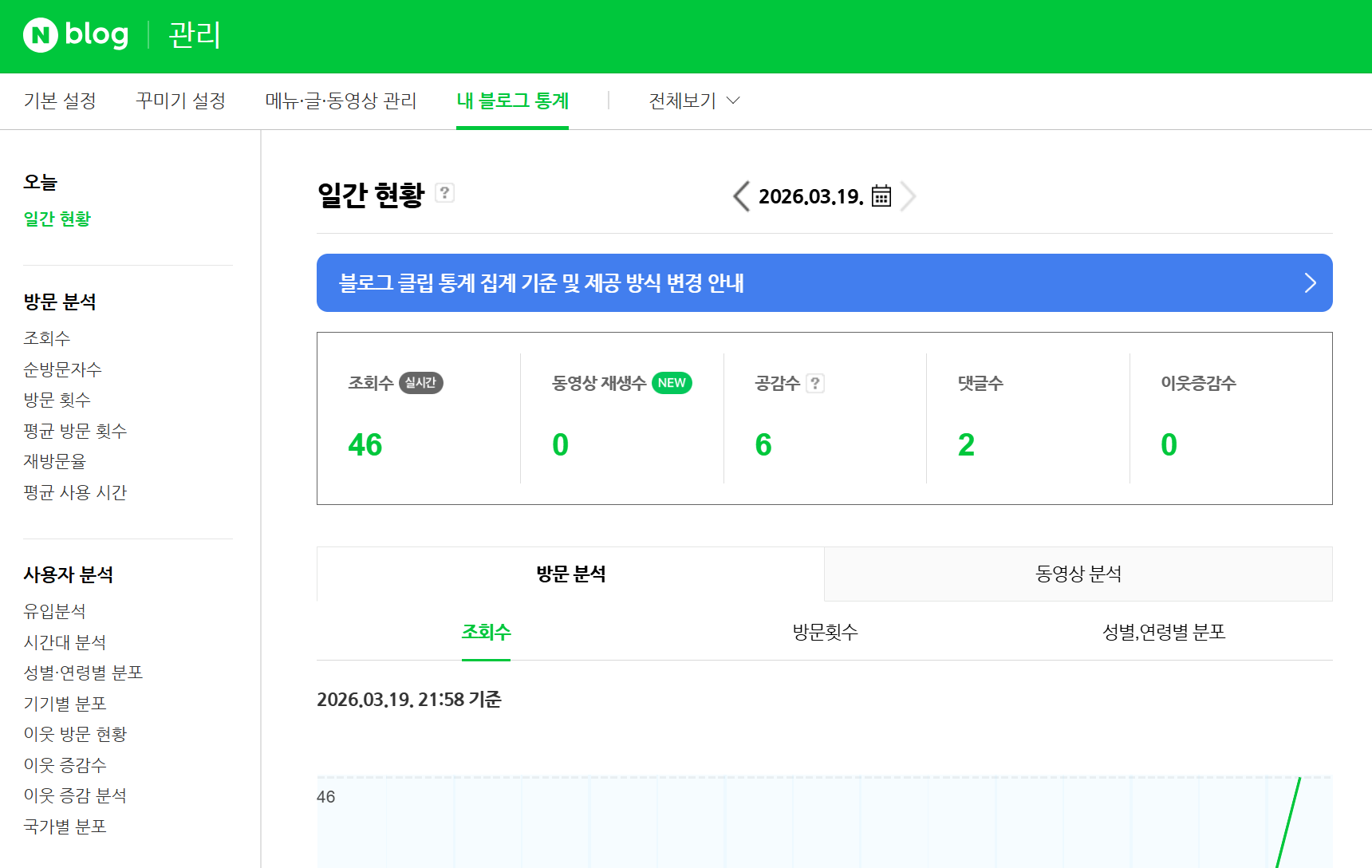
네이버에 방문객이 늘어나는중!
언제 될지 모르겠지만, 800여개의 글을 전부다 옮겨 보겠습니다.
from playwright.sync_api import sync_playwright
import time
import os
from naver_blog.tistory_scrape import readTistory
# --- HTML sanitize (Tistory -> Naver editor) ---
import re
from bs4 import BeautifulSoup
from urllib.parse import urljoin
import json
from pathlib import Path
import sqlite3
from datetime import datetime
# sqlite DB 경로(현재 스크립트와 같은 폴더에 생성)
DB_PATH = str(Path(__file__).with_name("tistory_to_naver.db"))
BLOG_ID = "billcoreatech" # 본인 블로그 ID
TEST_TITLE = "자동화 테스트 제목"
TEST_BODY_HTML = """
<p>이 글은 Playwright 자동화 테스트입니다.</p>
<p><strong>본문 입력 정상 동작 확인용</strong></p>
<p>iframe + contenteditable 기반 입력 테스트</p>
"""
# --- Naver login helpers ---
def _wait_for_any_selector(root, selectors: list[str], *, timeout_ms: int = 15000) -> str | None:
"""여러 셀렉터 중 하나라도 나타나면 해당 셀렉터를 반환."""
deadline = time.time() + (timeout_ms / 1000)
last_err = None
while time.time() < deadline:
for sel in selectors:
try:
loc = root.locator(sel).first
if loc.count() > 0 and loc.is_visible():
return sel
except Exception as e:
last_err = e
continue
time.sleep(0.2)
return None
def wait_for_naver_login_page_ready(page, *, timeout_ms: int = 30000) -> None:
"""네이버 로그인 페이지가 '입력 가능한 상태'가 될 때까지 대기합니다."""
# 로딩 상태(네트워크 idle은 로그인 페이지에서 흔들릴 수 있어 domcontentloaded 우선)
try:
page.wait_for_load_state("domcontentloaded", timeout=timeout_ms)
except Exception:
pass
# 실제로 폼이 뜰 때까지(변경 대비 OR)
sel = _wait_for_any_selector(
page,
[
"input#id",
"input[name='id']",
"input[type='password']",
"button[type='submit']",
],
timeout_ms=timeout_ms,
)
if not sel:
# 보호조치/캡차 등일 수도 있으니 디버그용 정보
raise RuntimeError(f"네이버 로그인 폼 로딩 감지 실패(timeout={timeout_ms}ms). 현재 URL={page.url}")
def _has_naver_login_cookies(context) -> bool:
try:
cookies = context.cookies()
except Exception:
return False
names = {c.get("name") for c in cookies if isinstance(c, dict)}
# 통상 로그인 세션 쿠키(환경에 따라 다를 수 있어 OR로)
return ("NID_AUT" in names) or ("NID_SES" in names)
def _looks_like_logged_in_dom(page) -> bool:
"""DOM에 '로그아웃' 흔적이 있는지로 로그인 완료를 보조 판정.
- 네이버는 서비스/시점에 따라 상단 메뉴 구조가 달라질 수 있어 느슨하게 확인합니다.
"""
selectors = [
"a[href*='nidlogout']",
"text=로그아웃",
"a:has-text('로그아웃')",
]
for sel in selectors:
try:
loc = page.locator(sel).first
if loc.count() > 0 and loc.is_visible():
return True
except Exception:
continue
return False
def perform_naver_login(page, *, user_id: str, user_pw: str, timeout_ms: int = 30000) -> None:
"""네이버 로그인 페이지에서 아이디/비번 입력 후 로그인 버튼을 클릭합니다.
주의:
- 캡차/보호조치/2FA가 뜨면 이후 단계에서 감지 대기하다가 타임아웃될 수 있습니다.
- 비밀번호 입력은 보안 정책/브라우저 설정에 따라 자동 입력이 막힐 수 있어, 여러 방식으로 시도합니다.
"""
wait_for_naver_login_page_ready(page, timeout_ms=timeout_ms)
# 네이버 로그인 입력 박스 셀렉터(변경 대비 OR)
id_selectors = [
"input#id",
"input[name='id']",
"#id",
]
pw_selectors = [
"input#pw",
"input[name='pw']",
"input[type='password']",
"#pw",
]
id_sel = _wait_for_any_selector(page, id_selectors, timeout_ms=timeout_ms)
pw_sel = _wait_for_any_selector(page, pw_selectors, timeout_ms=timeout_ms)
if not id_sel or not pw_sel:
raise RuntimeError("로그인 입력창(id/pw)을 찾지 못했습니다. (보호조치/캡차 화면일 수 있음)")
# 아이디
page.locator(id_sel).first.click()
page.keyboard.press("Control+A")
page.keyboard.press("Backspace")
page.keyboard.type(user_id, delay=25)
# 비밀번호: fill -> type 순으로 시도(일부 환경에서 type이 더 잘 먹힘)
pw_loc = page.locator(pw_sel).first
pw_loc.click()
try:
pw_loc.fill("")
pw_loc.fill(user_pw)
except Exception:
page.keyboard.press("Control+A")
page.keyboard.press("Backspace")
page.keyboard.type(user_pw, delay=25)
# 로그인 버튼
btn_selectors = [
"button#log\.login",
"#log\\.login",
"button[type='submit']",
"input[type='submit']",
"text=로그인",
]
btn_sel = _wait_for_any_selector(page, btn_selectors, timeout_ms=timeout_ms)
if btn_sel:
try:
page.locator(btn_sel).first.click()
except Exception:
# 클릭이 막히면 Enter로 제출 시도
page.keyboard.press("Enter")
else:
page.keyboard.press("Enter")
def goto_blog_section_and_open_write(page, *, timeout_ms: int = 30000):
"""로그인 후 섹션 홈으로 이동한 다음 '글쓰기' 버튼을 클릭해 글쓰기 모드로 진입.
네이버는 글쓰기 진입이
- 같은 탭 이동
- 새 탭(팝업)
- blog.naver.com/{id}?Redirect=Write
형태로 바뀔 수 있어, 클릭 후 페이지 컨텍스트의 새 페이지도 감지합니다.
반환: 글쓰기 화면으로 판단되는 Page 객체(대개 원래 page 또는 새 탭)
"""
target_url = "https://section.blog.naver.com/BlogHome.naver?directoryNo=0¤tPage=1&groupId=0"
# 1) 섹션 홈 이동
page.goto(target_url, wait_until="domcontentloaded")
try:
page.wait_for_load_state("networkidle", timeout=timeout_ms)
except Exception:
pass
# 2) '글쓰기' 버튼/링크 찾기
write_selectors = [
"a:has-text('글쓰기')",
"button:has-text('글쓰기')",
"text=글쓰기",
"a[href*='Redirect=Write']",
"a[href*='Write']",
]
sel = _wait_for_any_selector(page, write_selectors, timeout_ms=timeout_ms)
if not sel:
raise RuntimeError(f"섹션 홈에서 '글쓰기' 버튼을 찾지 못했습니다. url={page.url}")
# 3) 클릭 -> 새 탭이 뜰 수도 있어서 expect_page로 감싸서 처리
ctx = page.context
new_page = None
try:
with ctx.expect_page(timeout=5000) as pinfo:
page.locator(sel).first.click()
new_page = pinfo.value
except Exception:
# 새 탭이 안 뜨는 케이스면 현재 페이지에서 이동했을 가능성
try:
page.locator(sel).first.click()
except Exception:
# 클릭이 막히면 Enter
page.keyboard.press("Enter")
write_page = new_page or page
# 4) 글쓰기 화면 로딩 대기(iframe/mainFrame 또는 Redirect=Write URL 등)
deadline = time.time() + (timeout_ms / 1000)
while time.time() < deadline:
try:
cur = write_page.url or ""
if "Redirect=Write" in cur or ("write" in cur.lower() and "blog.naver.com" in cur):
break
except Exception:
pass
# mainFrame이 뜨면 거의 글쓰기 진입
try:
if write_page.frame(name="mainFrame"):
break
except Exception:
pass
time.sleep(0.3)
# 추가로 mainFrame이 나타날 때까지 조금 더 기다림(네트워크/리다이렉트 변동 대비)
try:
write_page.wait_for_timeout(800)
except Exception:
pass
return write_page
def wait_for_naver_login_complete(page, *, timeout_ms: int = 300000) -> bool:
"""사용자가 로그인(수동)을 완료할 때까지 자동 감지해서 대기합니다.
감지 기준:
- 쿠키(NID_AUT/NID_SES) 생성 또는
- URL이 로그인 페이지를 벗어남
반환: True(로그인 완료로 판단) / False(타임아웃)
"""
deadline = time.time() + (timeout_ms / 1000)
login_url_prefix = "https://nid.naver.com/nidlogin.login"
while time.time() < deadline:
# 1) 쿠키 기반
try:
if _has_naver_login_cookies(page.context):
return True
except Exception:
pass
# 2) URL 기반(리다이렉트/다른 페이지로 이동)
try:
cur = page.url or ""
if (login_url_prefix not in cur) and ("nidlogin.login" not in cur):
return True
except Exception:
pass
# 3) DOM 기반(로그아웃 요소 등)
try:
if _looks_like_logged_in_dom(page):
return True
except Exception:
pass
time.sleep(0.5)
return False
def find_main_frame(page):
# 1순위: name 기준
frame = page.frame(name="mainFrame")
if frame:
return frame
# 2순위: URL 패턴
for f in page.frames:
if "write" in (f.url or "").lower():
return f
raise RuntimeError("mainFrame 찾기 실패")
def find_editor_frame(main_frame):
# URL 기반
for f in main_frame.child_frames:
if "editor" in (f.url or "").lower():
return f
# contenteditable 기준 fallback
for f in main_frame.child_frames:
try:
if f.locator("[contenteditable='true']").count() > 0:
return f
except:
pass
raise RuntimeError("editor iframe 찾기 실패")
def focus_title_strong(page, title: str):
# 페이지 또는 프레임들에서 제목 요소를 찾아 포커싱/입력 시도
page.wait_for_timeout(100)
selectors = [
"div.se-component.se-documentTitle span.se-placeholder",
"div[data-a11y-title='제목'] span.se-placeholder",
"span.se-placeholder:has-text('제목')",
"span.__se-node",
"p.se-text-paragraph",
"div.se-module.se-title-text",
"text=제목",
]
def try_on(root):
# root는 Page 또는 Frame
for sel in selectors:
try:
locator = root.locator(sel)
if locator.count() > 0:
try:
locator.first.click()
page.wait_for_timeout(120)
page.keyboard.type(title, delay=40)
return True
except Exception:
# 클릭 실패 시 다음 선택자 시도
pass
except Exception:
continue
# evaluate 폴백
try:
result = root.evaluate("""
(title) => {
const candidateSelectors = [
'span.__se-node',
'div.se-component.se-documentTitle span.se-placeholder',
'[data-a11y-title="제목"] span.se-placeholder',
'p.se-text-paragraph',
'div.se-module.se-title-text'
];
let el = null;
for (const sel of candidateSelectors) {
const found = document.querySelector(sel);
if (found) { el = found; break; }
}
if (!el) {
el = Array.from(document.querySelectorAll('span.se-placeholder')).find(s => s.textContent && s.textContent.trim() === '제목');
}
if (!el) return { found: false, set: false };
try { el.click(); } catch(e) {}
let editable = null;
if (el.closest) {
editable = el.closest('[contenteditable]') || (el.querySelector && el.querySelector('[contenteditable]'));
}
if (!editable) {
editable = el;
}
try {
if (editable.isContentEditable || (editable.getAttribute && editable.getAttribute('contenteditable') === 'true')) {
editable.focus && editable.focus();
// contentEditable이면 내부 노드 중 빈 __se-node가 있으면 채우기
// 아니면 innerText로 대체
const node = editable.querySelector && editable.querySelector('span.__se-node');
if (node && node.innerText.trim() === '') {
node.innerText = title;
} else {
editable.innerText = title;
}
} else {
editable.innerText = title;
}
const evInput = new Event('input', { bubbles: true });
const evChange = new Event('change', { bubbles: true });
editable.dispatchEvent && editable.dispatchEvent(evInput);
editable.dispatchEvent && editable.dispatchEvent(evChange);
return { found: true, set: true };
} catch (e) {
return { found: true, set: false };
}
}
""", title)
if isinstance(result, dict):
return result.get('set', False)
except Exception:
pass
return False
# 1) 현재 페이지에서 시도
try:
if try_on(page):
return
except Exception:
pass
# 2) 모든 프레임에서 시도 (중첩 포함)
try:
frames_to_check = list(page.frames)
for fr in frames_to_check:
try:
if try_on(fr):
return
except Exception:
continue
except Exception:
pass
# 최후 수단: 포커스가 된 상태로 가정하고 키보드로 입력
page.wait_for_timeout(120)
page.keyboard.type(title, delay=40)
def sanitize_for_naver(html: str, *, base_url: str | None = None, remove_images: bool = False) -> str:
"""네이버 스마트에디터(스마트에디터 ONE) 입력용으로 본문 HTML을 최대한 안전하게 정리합니다.
목표
- 줄바꿈 유지: 블록 단위를 <p>로 통일하고 빈 줄은 <p><br></p>
- 이미지 유지: <img src="...">를 확정하고 불필요 속성 제거
- 에디터가 잘라내는 태그 최소화: div/span 등은 풀고(unwrap) 필요한 태그만 남김
주의
- 네이버 쪽에서 외부 이미지 표시를 제한할 수 있습니다.
이 경우엔 '외부 이미지' 정책 때문에 img가 사라지거나 로드 실패할 수 있어, 업로드 방식이 더 확실합니다.
추가
- 티스토리 codeblock(<pre data-ke-type="codeblock"><code>...</code></pre>)은
네이버 에디터에서 줄바꿈이 깨질 수 있어, 코드블록만 별도 변환합니다.
(코드 내용을 HTML escape 후 줄바꿈을 <br>로 강제)
remove_images:
- True: 본문 HTML 내의 <img> 태그를 모두 제거합니다. (이미지는 로컬 다운로드/업로드 플로우로만 처리)
"""
soup = BeautifulSoup(html or "", "lxml")
# --- Tistory codeblock normalize ---
# <pre ... data-ke-type="codeblock"><code>...</code></pre>
# 또는 data-ke-language가 있는 케이스를 대상으로, 네이버에서 줄바꿈이 유지되도록
# 내부 텍스트를 escape 후 <br>로 변환한 "pseudo code block"으로 치환합니다.
# (네이버가 외부 <pre>를 재가공하면서 \n을 공백으로 만들 수 있어 선제 대응)
def _escape_code_text(s: str) -> str:
# BeautifulSoup가 특수문자를 escape 해주긴 하지만, 여기서는 명시적으로 처리
return (s or "").replace("&", "&").replace("<", "<").replace(">", ">")
def _preserve_indentation(s: str) -> str:
"""코드블록 내 들여쓰기/정렬을 최대한 보존하기 위한 치환.
- 탭(\t): 4칸 공백으로 변환 후 nbsp 처리
- 라인 선두/연속 공백: HTML에서 축약되지 않도록 로 보존
주의: 전체 공백을 전부 nbsp로 바꾸면 복사/편집성이 떨어질 수 있어,
'연속 공백(2개 이상)'과 '라인 선두'에만 적용합니다.
"""
if not s:
return ""
s = s.replace("\t", " ")
lines = s.split("\n")
out_lines: list[str] = []
for line in lines:
if not line:
out_lines.append("")
continue
# 1) 선두 공백은 모두 nbsp로
m = re.match(r"^( +)", line)
if m:
lead = m.group(1)
rest = line[len(lead):]
lead_nbsp = " " * len(lead)
else:
lead_nbsp = ""
rest = line
# 2) 중간의 연속 공백(2개 이상)은 첫 공백만 유지하고 나머지를 nbsp로
# 예: 'a b' -> 'a b' (총 4칸 유지)
def _collapse_spaces(match: re.Match) -> str:
n = len(match.group(0))
return " " + (" " * (n - 1))
rest = re.sub(r" {2,}", _collapse_spaces, rest)
out_lines.append(lead_nbsp + rest)
return "\n".join(out_lines)
for pre in list(soup.find_all("pre")):
try:
ke_type = (pre.get("data-ke-type") or "").strip().lower()
has_code_child = pre.find("code") is not None
ke_lang = (pre.get("data-ke-language") or "").strip()
# 티스토리 코드블록의 전형적인 패턴만 대상으로 함(일반 pre는 유지)
if not (ke_type == "codeblock" or (has_code_child and ke_lang)):
continue
code = pre.find("code") or pre
# code 내부에 <br>가 섞여 있을 수 있어 텍스트로 안전하게 추출
raw_text = code.get_text()
# get_text()는 <br>을 개행으로 치환하지 않을 수 있어 폴백 처리
if "<br" in str(code).lower() and ("\n" not in (raw_text or "")):
# <br>을 개행으로 보고 다시 추출
try:
tmp = BeautifulSoup(str(code), "lxml")
for br in tmp.find_all("br"):
br.replace_with("\n")
raw_text = tmp.get_text()
except Exception:
pass
# 줄바꿈 정규화
raw_text = (raw_text or "").replace("\r\n", "\n").replace("\r", "\n")
escaped = _escape_code_text(raw_text)
escaped = _preserve_indentation(escaped)
# 줄바꿈을 <br>로 강제(마지막 줄이 비어있어도 보이도록)
html_lines = escaped.split("\n")
# 빈 코드블럭 방지
if not html_lines:
html_lines = [""]
# 코드블럭을 일반 문단/인라인으로 흡수시키지 않도록 wrapper를 둠
# - <pre> 자체는 네이버가 제거/변형할 수 있어 사용하지 않음
# - 대신 p + code 조합으로, 줄바꿈은 <br>로 표현
# white-space는 에디터가 style을 제거할 수도 있지만, 남아있으면 들여쓰기에 도움이 됨
code_html = "<p><code style=\"white-space:pre-wrap; font-family:monospace;\">" + "<br>".join(html_lines) + "</code></p>"
repl = BeautifulSoup(code_html, "lxml")
new_p = repl.find("p")
if new_p is not None:
pre.replace_with(new_p)
except Exception:
# 코드블록 변환 실패는 전체 sanitize를 막지 않도록 무시
continue
# 1) 위험/불필요 태그 제거
for tag in soup.find_all(["script", "style", "noscript", "iframe", "object", "embed", "form", "input", "button"]):
tag.decompose()
# (추가) RDF/CCL 같은 메타 블록 제거
for tag in soup.find_all(["rdf:rdf", "rdf", "work", "license"]):
try:
tag.decompose()
except Exception:
pass
# 2) 광고/관련글/태그/댓글로 자주 쓰이는 블록 제거 (있으면)
for sel in [
".another_category",
".related_posts",
".postbtn",
".share",
".comment",
"#comment",
]:
for t in soup.select(sel):
t.decompose()
# (추가) 티스토리 광고/구독/CCL UI 제거
for sel in [
"[data-tistory-react-app]",
"button.btn_subscription",
"a.link_ccl",
".bundle_ccl",
]:
for t in soup.select(sel):
try:
t.decompose()
except Exception:
pass
# 3) div/span은 모두 풀기 (내용만 유지)
for tag in list(soup.find_all(["div", "span"])):
# 구독 버튼 등은 위에서 제거하지만, 혹시 남았으면 방어적으로 제거
if tag.get("data-tistory-react-app"):
tag.decompose()
continue
tag.unwrap()
# 허용 태그 (최소)
allowed_tags = {
"p",
"br",
"strong",
"b",
"em",
"i",
"u",
"s",
"blockquote",
"pre",
"code",
"ul",
"ol",
"li",
"hr",
"h1",
"h2",
"h3",
"h4",
"h5",
"h6",
"a",
# 이미지 업로드를 별도로 하므로, 기본은 포함하되 remove_images=True면 제거
"img",
"table",
"thead",
"tbody",
"tr",
"th",
"td",
}
def pick_img_url(tag) -> str | None:
srcset = tag.get("srcset")
if srcset:
parts = [p.strip() for p in srcset.split(",") if p.strip()]
if parts:
u = parts[-1].split()[0].strip()
if u:
return u
for k in ["data-src", "data-original", "data-url", "data-lazy", "data-origin-src", "src"]:
v = tag.get(k)
if v and str(v).strip():
return str(v).strip()
return None
def _is_allowed_url(u: str) -> bool:
u = (u or "").strip().lower()
return u.startswith("http://") or u.startswith("https://")
# 4) 허용 태그만 남기고 나머지는 unwrap
for tag in list(soup.find_all(True)):
name = tag.name.lower()
if name not in allowed_tags:
tag.unwrap()
continue
# 이미지 제거 옵션
if remove_images and name == "img":
tag.decompose()
continue
# 속성 정리
for attr_name in list(dict(tag.attrs).keys()):
an = attr_name.lower()
if an.startswith("on"):
del tag.attrs[attr_name]
continue
if name == "a":
if an not in {"href", "title", "target", "rel"}:
del tag.attrs[attr_name]
elif name == "img":
if an not in {"src", "alt"}:
del tag.attrs[attr_name]
else:
# 나머지는 속성 제거(에디터가 종종 자름)
del tag.attrs[attr_name]
# 링크 정리
if name == "a":
href = tag.get("href")
if href and base_url:
tag["href"] = urljoin(base_url, href)
tag["rel"] = "noopener noreferrer"
if "target" not in tag.attrs:
tag["target"] = "_blank"
# 이미지 src 확정
if name == "img":
url = pick_img_url(tag)
if url:
if base_url:
url = urljoin(base_url, url)
# 네이버 에디터가 data:, blob: 등을 잘라내는 경우가 있어 http(s)만 유지
if _is_allowed_url(url):
tag["src"] = url
else:
tag.decompose()
continue
else:
tag.decompose()
continue
if not tag.get("alt"):
tag["alt"] = ""
# 5) 블록 단위 통일
body = soup.body if soup.body else soup
def _preserve_text_whitespace(text: str) -> str:
"""일반 텍스트에서도 개행/들여쓰기를 최대한 보존하기 위한 변환.
- \r\n/\r -> \n
- 선두 공백: 로
- 연속 공백(2개 이상): 첫 공백만 남기고 나머지
- 개행: <br>로 변환하기 위해 '\n'을 유지(나중에 split해서 Tag로 넣음)
"""
text = (text or "").replace("\r\n", "\n").replace("\r", "\n")
lines = text.split("\n")
out_lines: list[str] = []
for line in lines:
if line == "":
out_lines.append("")
continue
m = re.match(r"^( +)", line)
if m:
lead = m.group(1)
rest = line[len(lead):]
lead_nbsp = " " * len(lead)
else:
lead_nbsp = ""
rest = line
def _collapse_spaces(match: re.Match) -> str:
n = len(match.group(0))
return " " + (" " * (n - 1))
rest = re.sub(r" {2,}", _collapse_spaces, rest)
out_lines.append(lead_nbsp + rest)
return "\n".join(out_lines)
def wrap_text_nodes_with_p(root):
for node in list(root.contents):
# NavigableString 처리
if getattr(node, "name", None) is None:
txt = str(node)
if txt.strip():
p = soup.new_tag("p")
preserved = _preserve_text_whitespace(txt.strip())
parts = preserved.split("\n")
for i, part in enumerate(parts):
if i > 0:
p.append(soup.new_tag("br"))
# part에는 등이 들어갈 수 있어 string으로 넣지 않고 파싱해서 삽입
frag = BeautifulSoup(part, "lxml")
# lxml은 <html><body>... 구조를 만들 수 있어, 텍스트/태그만 꺼내 붙임
container = frag.body if frag.body else frag
for c in list(container.contents):
p.append(c)
node.replace_with(p)
else:
node.extract()
wrap_text_nodes_with_p(body)
# (추가) p 내부에 순수 텍스트만 있고 \n 이 포함된 경우도 <br>로 치환
for p in list(body.find_all("p")):
try:
# p 내에 자식 태그가 없고 텍스트에 개행이 있으면 분해
if not p.find(True):
txt = p.get_text()
if "\n" in (txt or ""):
preserved = _preserve_text_whitespace(txt)
p.clear()
for i, part in enumerate(preserved.split("\n")):
if i > 0:
p.append(soup.new_tag("br"))
frag = BeautifulSoup(part, "lxml")
container = frag.body if frag.body else frag
for c in list(container.contents):
p.append(c)
except Exception:
continue
# 6) 연속 <br> 또는 빈 영역을 <p><br></p>로 보정
for p in list(body.find_all("p")):
# p 안에 아무 것도 없거나 공백만 있으면 <br> 넣기
if not p.get_text(strip=True) and not p.find(["br"]):
p.clear()
p.append(soup.new_tag("br"))
# body 직계에 img 등이 있고 p가 없으면 img 앞뒤를 p로 구분(줄바꿈 효과)
# -> 이미지 제거(remove_images)인 경우엔 굳이 이 로직을 태울 필요가 없음
if not remove_images:
new_children = []
for child in list(body.contents):
if getattr(child, "name", None) == "img":
new_children.append(BeautifulSoup("<p><br></p>", "lxml").p)
p = soup.new_tag("p")
p.append(child.extract())
new_children.append(p)
new_children.append(BeautifulSoup("<p><br></p>", "lxml").p)
else:
new_children.append(child)
body.clear()
for c in new_children:
body.append(c)
cleaned = "".join(str(x) for x in body.contents)
cleaned = re.sub(r"\n{3,}", "\n\n", cleaned)
return cleaned.strip()
def _find_editable_in_frame(frame):
"""네이버 글쓰기(스마트에디터)에서 실제 본문 입력 노드를 최대한 찾아 반환합니다.
반환: (Frame, css_selector) 또는 (None, None)
메모:
- 네이버 글쓰기 페이지는 같은 프레임 안에서도 contenteditable 후보가 여러 개일 수 있어
'본문'에 가까운 셀렉터를 우선합니다.
"""
# about:blank 같은 빈 프레임은 후보에서 제외
try:
if not frame.url or frame.url.startswith("about:"):
return None, None
except Exception:
return None, None
candidate_selectors = [
# SmartEditor ONE 본문에서 자주 보이는 루트(우선순위 높음)
"div.se2_inputarea[contenteditable='true']",
"div.se-editable[contenteditable='true']",
"div.se-component-content[contenteditable='true']",
"div[role='textbox'][contenteditable='true']",
# 마지막 폴백
"[contenteditable='true']",
]
# locator.count()가 프레임 로딩 타이밍에 따라 0이 나오는 경우가 있어 evaluate로도 확인
for sel in candidate_selectors:
try:
# 1) locator 기반
loc = frame.locator(sel)
if loc.count() > 0:
return frame, sel
except Exception:
pass
try:
# 2) evaluate 기반
exists = frame.evaluate("""(sel) => document.querySelector(sel) !== null""", sel)
if exists:
return frame, sel
except Exception:
continue
return None, None
def _find_best_editor_target_from_page(page):
"""page 전체 frames에서 본문 편집 대상(Frame+selector)을 찾습니다."""
try:
frames = list(page.frames)
except Exception:
frames = []
for fr in frames:
found_fr, found_sel = _find_editable_in_frame(fr)
if found_fr:
return found_fr, found_sel
return None, None
def _find_best_editor_target(main_frame):
"""main_frame부터 하위 프레임까지 훑어서 본문 편집 대상(Frame+selector)을 찾습니다."""
queue = [main_frame]
visited = set()
while queue:
fr = queue.pop(0)
if fr in visited:
continue
visited.add(fr)
found_fr, found_sel = _find_editable_in_frame(fr)
if found_fr:
return found_fr, found_sel
try:
queue.extend(list(fr.child_frames))
except Exception:
pass
return None, None
def set_body_text_mode(target_frame, selector: str, text: str):
"""가장 안정적인 방식: 텍스트를 줄 단위로 입력(Enter로 줄바꿈)."""
# 줄바꿈 정규화
lines = (text or "").replace("\r\n", "\n").replace("\r", "\n").split("\n")
# 너무 긴 문서를 한 번에 넣지 않도록 적당히 처리
# 클릭/포커스는 JS에서, 실제 입력은 playwright keyboard로
target_frame.evaluate(
"""
(selector) => {
const nodes = Array.from(document.querySelectorAll(selector)).filter(el => el && el.isConnected);
if (!nodes.length) throw new Error('no editor for text mode');
const scored = nodes.map(el => {
const r = el.getBoundingClientRect ? el.getBoundingClientRect() : { width: 0, height: 0 };
const area = (r.width || 0) * (r.height || 0);
return { el, area };
}).sort((a,b) => b.area - a.area);
const editor = scored[0].el;
editor.focus();
try { editor.innerHTML=''; } catch(e) {}
}
""",
selector,
)
# 실제 키 입력
for i, line in enumerate(lines):
if line:
target_frame.page.keyboard.type(line, delay=10)
# 줄바꿈
if i < len(lines) - 1:
target_frame.page.keyboard.press("Enter")
# 기존 set_body를 mode 지원으로 확장
def set_body(editor_frame, html, *, base_url: str | None = None, page=None, mode: str = "auto"):
"""본문 입력.
mode:
- auto: paste -> insertHTML -> range -> text 폴백
- paste: paste만 시도(실패 시 auto 폴백)
- insertHTML: insertHTML 우선(실패 시 range -> text)
- range: range 우선(실패 시 text)
- text: 텍스트 키입력(줄바꿈 Enter)
"""
# 이미지 업로드는 별도 플로우로 처리하므로 본문에서는 <img>를 제거
html = sanitize_for_naver(html, base_url=base_url, remove_images=True)
# 1) editor_frame(기존 로직)에서 탐색
target_frame, target_selector = _find_best_editor_target(editor_frame)
# 2) 실패하면 page 전체에서 탐색
if not target_frame and page is not None:
target_frame, target_selector = _find_best_editor_target_from_page(page)
if not target_frame:
raise RuntimeError(
f"본문 편집 영역을 찾지 못했습니다. editor_frame_url={getattr(editor_frame, 'url', None)}"
)
print(f"[set_body] target_frame_url={target_frame.url} selector={target_selector} mode={mode}")
try:
target_frame.wait_for_load_state("domcontentloaded", timeout=5000)
except Exception:
pass
if mode == "text":
_soup = BeautifulSoup(html, "lxml")
txt = "\n".join(_soup.stripped_strings)
set_body_text_mode(target_frame, target_selector, txt)
return
# JS 내부에서 어떤 method를 시도할지 결정
js_mode = mode
if js_mode not in {"auto", "paste", "insertHTML", "range"}:
js_mode = "auto"
result = target_frame.evaluate(
"""
({ html, selector, mode }) => {
const nodes = Array.from(document.querySelectorAll(selector)).filter(el => el && el.isConnected);
if (!nodes.length) {
return { ok: false, method: 'none', reason: 'no_candidates', htmlLen: 0, textLen: 0 };
}
// 가장 화면에 보이는 큰 영역 우선
const scored = nodes.map(el => {
const r = el.getBoundingClientRect ? el.getBoundingClientRect() : { width: 0, height: 0 };
const area = Math.max(0, r.width) * Math.max(0, r.height);
const style = window.getComputedStyle ? window.getComputedStyle(el) : null;
const visible = style ? (style.visibility !== 'hidden' && style.display !== 'none') : true;
return { el, area, visible };
}).sort((a,b) => {
const as = (a.visible ? 1e12 : 0) + a.area;
const bs = (b.visible ? 1e12 : 0) + b.area;
return bs - as;
});
const editor = scored[0].el;
editor.scrollIntoView && editor.scrollIntoView({ block: 'center' });
editor.focus && editor.focus();
const beforeTextLen = (editor.innerText || '').trim().length;
const beforeHtmlLen = (editor.innerHTML || '').length;
const measure = () => {
const textLen = (editor.innerText || '').trim().length;
const htmlLen = (editor.innerHTML || '').length;
const changed = (textLen !== beforeTextLen) || (htmlLen !== beforeHtmlLen);
const enough = (textLen >= 20) || (htmlLen >= 50);
return { changed, enough, textLen, htmlLen };
};
// 일부 에디터는 이벤트 처리 후 비동기로 DOM을 갱신하므로, 0ms 지연 후 재측정을 지원
const measureSoon = () => new Promise(resolve => {
setTimeout(() => resolve(measure()), 0);
});
const tryPaste = async () => {
// 1) ClipboardEvent + DataTransfer
try {
const dt = new DataTransfer();
dt.setData('text/html', html);
const tmp = document.createElement('div');
tmp.innerHTML = html;
const text = (tmp.innerText || tmp.textContent || '').trim();
dt.setData('text/plain', text);
try {
editor.dispatchEvent(new InputEvent('beforeinput', {
bubbles: true,
cancelable: true,
inputType: 'insertFromPaste',
dataTransfer: dt,
}));
} catch(e) {}
try {
const pasteEvt = new ClipboardEvent('paste', {
bubbles: true,
cancelable: true,
clipboardData: dt,
});
editor.dispatchEvent(pasteEvt);
} catch(e) {
// ClipboardEvent 생성이 막히면 다음 경로로
throw e;
}
let m = measure();
if (m.enough) return true;
m = await measureSoon();
return m.enough;
} catch(e) {
// 2) navigator.clipboard를 사용할 수 있으면 시도 (권한/보안 정책에 따라 실패 가능)
try {
const tmp = document.createElement('div');
tmp.innerHTML = html;
const text = (tmp.innerText || tmp.textContent || '').trim();
if (navigator.clipboard && navigator.clipboard.write) {
const item = new ClipboardItem({
'text/plain': new Blob([text], { type: 'text/plain' }),
'text/html': new Blob([html], { type: 'text/html' }),
});
await navigator.clipboard.write([item]);
// 일부 환경에서 execCommand('paste')가 동작할 수 있음
try { document.execCommand && document.execCommand('paste'); } catch(e2) {}
let m = measure();
if (m.enough) return true;
m = await measureSoon();
return m.enough;
}
} catch(e3) {
// ignore
}
return false;
}
};
const tryInsertHTML = () => {
try {
try { editor.innerHTML = ''; } catch(e) {}
return !!(document.execCommand && document.execCommand('insertHTML', false, html));
} catch(e) {
return false;
}
};
const tryRange = () => {
try {
const range = document.createRange();
range.selectNodeContents(editor);
range.collapse(false);
const sel = window.getSelection();
sel.removeAllRanges();
sel.addRange(range);
const tpl = document.createElement('template');
tpl.innerHTML = html;
range.insertNode(tpl.content);
return true;
} catch(e) {
return false;
}
};
// async 체인
return (async () => {
let ok = false;
let method = 'none';
const chainAuto = ['paste', 'insertHTML', 'range'];
const chain = (mode === 'paste') ? ['paste', ...chainAuto.filter(x=>x!=='paste')]
: (mode === 'insertHTML') ? ['insertHTML', 'range']
: (mode === 'range') ? ['range']
: chainAuto;
for (const m of chain) {
if (m === 'paste') {
if (await tryPaste()) { ok = true; method = 'paste'; break; }
} else if (m === 'insertHTML') {
if (tryInsertHTML()) {
let res = measure();
if (!res.enough) res = await measureSoon();
ok = res.enough || res.changed;
method = 'insertHTML';
if (ok) break;
}
} else if (m === 'range') {
if (tryRange()) {
let res = measure();
if (!res.enough) res = await measureSoon();
ok = res.enough || res.changed;
method = 'range';
if (ok) break;
}
}
}
editor.dispatchEvent(new Event('input', { bubbles: true }));
editor.dispatchEvent(new Event('change', { bubbles: true }));
let final = measure();
if (!final.enough) final = await measureSoon();
return {
ok,
method,
reason: ok ? 'inserted' : 'failed',
htmlLen: final.htmlLen,
textLen: final.textLen,
picked: { area: scored[0].area, visible: scored[0].visible },
before: { textLen: beforeTextLen, htmlLen: beforeHtmlLen },
};
})();
}
""",
{"html": html, "selector": target_selector, "mode": js_mode},
)
if isinstance(result, dict):
print(
f"[set_body] ok={result.get('ok')} method={result.get('method')} htmlLen={result.get('htmlLen')} textLen={result.get('textLen')} "
f"reason={result.get('reason')} before={result.get('before')} picked={result.get('picked')}"
)
# 최후 폴백: JS가 실패로 판단하면 텍스트 모드
if not isinstance(result, dict) or not result.get('ok'):
print("[set_body] JS 삽입 실패 -> 텍스트 모드 폴백")
_soup = BeautifulSoup(html, "lxml")
txt = "\n".join(_soup.stripped_strings)
set_body_text_mode(target_frame, target_selector, txt)
def _open_image_upload_ui(page) -> bool:
"""네이버 글쓰기에서 '사진/이미지' 업로드 UI를 열어 file input이 나타나게 시도합니다."""
button_selectors = [
"button:has-text('사진')",
"button:has-text('이미지')",
"button:has-text('포토')",
"button:has-text('첨부')",
"button[aria-label*='사진']",
"button[aria-label*='이미지']",
"a:has-text('사진')",
"a:has-text('이미지')",
"span:has-text('사진')",
"span:has-text('이미지')",
]
for fr in list(page.frames):
for sel in button_selectors:
try:
loc = fr.locator(sel)
if loc.count() == 0:
continue
loc.first.click(timeout=800)
page.wait_for_timeout(300)
return True
except Exception:
continue
return False
def _find_file_input_for_images(page):
"""page/frames에서 이미지 업로드용 file input을 찾아 (frame, locator) 반환."""
candidate_selectors = [
"input[type='file'][accept*='image']",
"input[type='file']",
]
for fr in list(page.frames):
for sel in candidate_selectors:
try:
loc = fr.locator(sel)
if loc.count() > 0:
return fr, loc.first
except Exception:
continue
return None, None
def _try_upload_via_filechooser(page, paths: list[str], *, timeout_ms: int = 15000) -> bool:
"""클릭 시 OS 파일 선택창(file chooser)이 뜨는 흐름을 Playwright로 처리.
네이버 에디터는 어떤 경우엔 input[type=file]가 노출되지 않고,
'사진/이미지' 버튼 클릭 시 filechooser 이벤트가 발생합니다.
이 경우 expect_file_chooser + set_files 로 업로드를 진행합니다.
반환: filechooser로 업로드를 시도했으면 True, 이벤트가 안 떠서 못했으면 False
"""
try:
# 업로드 버튼을 다시 한번 열어주며(성공/실패 상관없이) filechooser를 유도
with page.expect_file_chooser(timeout=timeout_ms) as fc_info:
_open_image_upload_ui(page)
chooser = fc_info.value
chooser.set_files(paths)
return True
except Exception:
return False
def _try_upload_via_windows_dialog(paths: list[str], *, timeout_ms: int = 20000) -> bool:
"""Windows '열기' 파일 선택 대화상자가 떠 있는 경우를 pywinauto로 제어.
전제:
- Chromium/Playwright가 OS 파일 대화상자를 띄운 상태에서 이 함수가 호출되어야 합니다.
주의:
- 환경/언어(한글/영문 Windows)에 따라 컨트롤 이름이 다를 수 있어
여러 후보를 순차 시도합니다.
"""
try:
from pywinauto import Application # type: ignore
except Exception:
return False
if not paths:
return False
# 여러 파일은 줄바꿈으로 전달(Windows 공통 동작)
file_text = "\n".join(paths)
first_parent = None
try:
first_parent = str(Path(paths[0]).parent)
except Exception:
first_parent = None
deadline = time.time() + (timeout_ms / 1000)
last_err = None
while time.time() < deadline:
try:
# connect가 실패하는 경우가 있어(권한/포커스/멀티창) Desktop 탐색도 시도
try:
app = Application(backend="uia").connect(title_re=r"^(열기|Open)$")
dlg = app.window(title_re=r"^(열기|Open)$")
except Exception:
app = Application(backend="uia")
dlg = app.window(title_re=r"^(열기|Open)$")
dlg.wait("visible", timeout=2)
# 파일명 입력 박스 후보
edit = None
for c in [
lambda: dlg.child_window(auto_id="1148", control_type="Edit"), # common file name box
lambda: dlg.child_window(title_re=r"파일 이름|File name", control_type="Edit"),
lambda: dlg.child_window(control_type="Edit"),
]:
try:
e = c()
if e.exists():
edit = e
break
except Exception:
continue
if edit is None:
return False
# 1) 가장 안정적인 방식: 파일명 칸에 '전체 경로'들을 줄바꿈으로 입력
# (폴더 탐색/클릭 없이도 다중 선택 가능)
try:
edit.set_edit_text("")
edit.set_edit_text(file_text)
except Exception:
# 2) 실패하면: 먼저 폴더 경로를 파일명에 넣고 Enter로 이동한 뒤,
# 파일명만(여러 개면 줄바꿈) 입력
if first_parent:
try:
edit.set_edit_text("")
edit.set_edit_text(first_parent)
dlg.type_keys("{ENTER}")
time.sleep(0.4)
names = []
for p in paths:
try:
pp = Path(p)
names.append(pp.name)
except Exception:
continue
if names:
edit.set_edit_text("")
edit.set_edit_text("\n".join(names))
except Exception:
pass
# 열기 버튼 후보
btn = None
for c in [
lambda: dlg.child_window(title_re=r"열기|Open", control_type="Button"),
lambda: dlg.child_window(auto_id="1", control_type="Button"),
]:
try:
b = c()
if b.exists():
btn = b
break
except Exception:
continue
if btn is None:
# Enter로 대체 시도
try:
dlg.type_keys("{ENTER}")
return True
except Exception:
return False
btn.click_input()
return True
except Exception as e:
last_err = e
time.sleep(0.3)
return False
def _wait_for_image_upload_settled(page, *, timeout_ms: int = 120000) -> dict:
"""이미지 파일 set_input_files 이후 업로드/삽입이 끝나고 팝업이 정리될 때까지 대기.
네이버 에디터는 시점에 따라
- 파일 선택 즉시 본문에 삽입
- 업로드 팝업/레이어에서 '확인/완료/적용'을 눌러야 삽입
- 업로드 진행률이 끝날 때까지 대기 필요
가 섞여서 나타날 수 있어, 여러 신호를 느슨하게 조합합니다.
추가: 대기 중 배열 선택 UI(se-image-type-label)가 뜨면 자동 처리합니다.
"""
deadline = time.time() + (timeout_ms / 1000)
# 클릭 가능한 '완료/확인' 계열 버튼 후보(팝업/레이어)
confirm_selectors = [
"button:has-text('완료')",
"button:has-text('확인')",
"button:has-text('적용')",
"button:has-text('등록')",
"button:has-text('넣기')",
"button:has-text('삽입')",
"button:has-text('닫기')",
"text=완료",
"text=확인",
]
# 업로드 진행 중일 때 보이는 텍스트/요소 후보(있으면 사라질 때까지 기다리는 용도)
busy_text_selectors = [
"text=업로드",
"text=Uploading",
"text=전송",
"text=진행",
]
# 에디터 본문에서 업로드된 이미지를 감지하기 위한 셀렉터
# (단순 img 태그가 아니라, 네이버 에디터의 이미지 컴포넌트로 한정)
uploaded_img_selectors = [
".se-component.se-image img",
".se-image-resource img",
"img[src*='postfiles']",
"img[src*='blogfiles']",
"img[src*='pstatic']",
"img[data-src]",
]
# 시작 시점의 img 개수를 기록(기존 이미지와 새 이미지를 구분)
initial_img_count = 0
try:
for fr in list(page.frames):
try:
initial_img_count += fr.locator("img").count()
except Exception:
pass
except Exception:
pass
last_click = 0.0
layout_handled = False
while time.time() < deadline:
# 0) 배열 선택 UI가 대기 중에 나타났으면 처리 (안전망)
if not layout_handled:
try:
roots = [page] + list(page.frames)
for root in roots:
try:
labels = root.locator(".se-image-type-label")
if labels.count() >= 1 and labels.nth(0).is_visible():
print("[upload_settle] layout choice UI detected during settle wait → handling")
ch = _handle_multi_image_layout_choice(page, prefer="개별", timeout_ms=15000)
print(f"[upload_settle] layout_choice={ch}")
layout_handled = True
break
except Exception:
continue
except Exception:
pass
# 1) 본문에 이미지가 들어갔는지(iframe 포함) 확인
# — 네이버 에디터 이미지 컴포넌트 셀렉터를 우선 체크
try:
for fr in list(page.frames):
for sel in uploaded_img_selectors:
try:
if fr.locator(sel).count() > 0:
return {"ok": True, "reason": "img_tag_detected"}
except Exception:
continue
except Exception:
pass
# 1-b) 구체 셀렉터로 못 잡으면, img 총 개수가 늘었는지로 판단
try:
current_img_count = 0
for fr in list(page.frames):
try:
current_img_count += fr.locator("img").count()
except Exception:
pass
if current_img_count > initial_img_count:
return {"ok": True, "reason": "img_tag_detected"}
except Exception:
pass
# 2) 가능한 '완료/확인' 버튼이 있으면 한 번씩 눌러보기(너무 자주 누르지 않게 throttle)
if time.time() - last_click > 1.2:
for sel in confirm_selectors:
try:
loc = page.locator(sel).first
if loc.count() > 0 and loc.is_visible() and loc.is_enabled():
loc.click(timeout=800)
last_click = time.time()
page.wait_for_timeout(400)
break
except Exception:
continue
# 3) 업로드가 돈다면(텍스트가 보인다면) 잠깐 기다리기
busy_seen = False
for sel in busy_text_selectors:
try:
loc = page.locator(sel).first
if loc.count() > 0 and loc.is_visible():
busy_seen = True
break
except Exception:
continue
if busy_seen:
time.sleep(0.5)
continue
# 4) 아무 신호가 없으면 짧게 폴링
time.sleep(0.3)
return {"ok": False, "reason": "upload_settle_timeout"}
def _handle_multi_image_layout_choice(page, *, prefer: str = "개별사진", timeout_ms: int = 15000) -> dict:
"""이미지 2장 이상 업로드 시 나타나는 '배열 방식' 선택(UI가 뜨면 클릭).
네이버 에디터는 다중 이미지 업로드 후
- 개별
- 콜라보(콜라주)
- 슬라이드/모음
같은 선택 화면이 뜨는 경우가 있어, 자동으로 기본값(개별)을 선택하고 진행합니다.
반환: {ok:bool, reason:str}
"""
deadline = time.time() + (timeout_ms / 1000)
# 텍스트 기반으로 '배열/레이아웃/콜라보' 화면 감지
trigger_texts = [
"배열",
"레이아웃",
"콜라보",
"콜라주",
"슬라이드",
"개별사진",
"개별",
]
# 선택 후보(우선 prefer)
option_selectors = [
f"button:has-text('{prefer}')",
f"label:has-text('{prefer}')",
f"span:has-text('{prefer}')",
# fallback: '개별사진' -> '개별'
"button:has-text('개별사진')",
"label:has-text('개별사진')",
"span:has-text('개별사진')",
"button:has-text('개별')",
"label:has-text('개별')",
"span:has-text('개별')",
]
# 다음/확인/적용/완료
confirm_selectors = [
"button:has-text('확인')",
"button:has-text('완료')",
"button:has-text('적용')",
"button:has-text('등록')",
"button:has-text('넣기')",
"button:has-text('삽입')",
"button:has-text('다음')",
]
def _text_seen() -> bool:
"""page와 모든 iframe에서 배열 선택 텍스트가 보이는지 확인."""
roots = [page] + list(page.frames)
for root in roots:
for t in trigger_texts:
try:
loc = root.get_by_text(t).first
if loc.count() > 0 and loc.is_visible():
return True
except Exception:
continue
return False
def _label_seen_in_any_root() -> bool:
"""page와 모든 iframe에서 .se-image-type-label 요소가 보이는지 확인."""
roots = [page] + list(page.frames)
for root in roots:
try:
labels = root.locator(".se-image-type-label")
if labels.count() >= 1:
if labels.nth(0).is_visible():
return True
except Exception:
continue
return False
# --- 배열 UI가 뜰 때까지 대기(즉시 안 뜨는 경우: 업로드 서버 처리 시간) ---
# 최대 timeout_ms 의 절반을 대기에 사용하고, 나머지를 클릭 시도에 사용
wait_deadline = time.time() + min(timeout_ms / 1000 * 0.6, 12.0)
appeared = _text_seen() or _label_seen_in_any_root()
if not appeared:
print("[layout] waiting for layout choice UI to appear...")
while time.time() < wait_deadline:
if _text_seen() or _label_seen_in_any_root():
appeared = True
print("[layout] layout choice UI appeared")
break
time.sleep(0.5)
if not appeared:
print("[layout] layout choice UI not appeared within wait period")
return {"ok": True, "reason": "no_layout_choice_ui"}
# --- 배열 UI가 보이면 클릭 시도 루프 ---
attempt = 0
while time.time() < deadline:
attempt += 1
roots = [page] + list(page.frames)
# 0) 가장 확실한 케이스: se-image-type-label 클릭 (page + 모든 frame)
label_clicked = False
for root in roots:
try:
labels = root.locator(".se-image-type-label")
cnt = labels.count()
if cnt < 1:
continue
first = labels.nth(0)
if not first.is_visible():
continue
print(f"[layout] attempt={attempt} found {cnt} .se-image-type-label in {getattr(root, 'url', 'page')[:80]}")
# 클릭 시도 (3단계 폴백)
click_ok = False
try:
first.click(timeout=2000)
click_ok = True
except Exception:
try:
first.click(timeout=2000, force=True)
click_ok = True
except Exception:
try:
bb = first.bounding_box()
if bb:
# page 레벨 mouse 사용(frame mouse는 좌표 오프셋 문제 가능)
page.mouse.click(bb["x"] + bb["width"] / 2, bb["y"] + bb["height"] / 2)
click_ok = True
except Exception:
pass
if not click_ok:
# JS 강제 클릭 폴백
try:
js_ok = root.evaluate("""() => {
const labels = document.querySelectorAll('.se-image-type-label');
if (labels.length < 1) return false;
const el = labels[0];
el.scrollIntoView({block:'center'});
const opts = {bubbles:true, cancelable:true, composed:true};
el.dispatchEvent(new PointerEvent('pointerdown', opts));
el.dispatchEvent(new MouseEvent('mousedown', opts));
el.dispatchEvent(new MouseEvent('mouseup', opts));
el.dispatchEvent(new MouseEvent('click', opts));
return true;
}""")
if js_ok:
click_ok = True
except Exception:
pass
if click_ok:
print(f"[layout] se-image-type-label clicked OK")
label_clicked = True
try:
page.wait_for_timeout(800)
except Exception:
time.sleep(0.8)
break
else:
print(f"[layout] se-image-type-label click FAILED (all methods)")
except Exception:
continue
# 1) 옵션 선택 (page + 모든 frame)
option_clicked = False
for root in roots:
for sel in option_selectors:
try:
loc = root.locator(sel).first
if loc.count() > 0 and loc.is_visible() and loc.is_enabled():
try:
loc.click(timeout=1200)
except Exception:
try:
loc.click(timeout=1200, force=True)
except Exception:
bb = loc.bounding_box()
if bb:
page.mouse.click(bb["x"] + bb["width"] / 2, bb["y"] + bb["height"] / 2)
try:
page.wait_for_timeout(400)
except Exception:
time.sleep(0.4)
option_clicked = True
print(f"[layout] option '{sel}' clicked in root={getattr(root, 'url', 'page')[:80]}")
break
except Exception:
continue
if option_clicked:
break
# label이나 option을 클릭한 뒤 UI 안정화 대기
if label_clicked or option_clicked:
try:
page.wait_for_timeout(500)
except Exception:
time.sleep(0.5)
# 2) 확인/적용/완료 계열 누르기
if _robust_click_in_page_or_frames(page, confirm_selectors, timeout_ms=2000):
print("[layout] confirm button clicked → layout_choice_confirmed")
return {"ok": True, "reason": "layout_choice_confirmed"}
# 3) UI가 사라졌으면 끝 (label도, 텍스트도 안 보이면)
if not _text_seen() and not _label_seen_in_any_root():
print("[layout] layout UI disappeared → done")
return {"ok": True, "reason": "layout_choice_disappeared"}
time.sleep(0.4)
print(f"[layout] timeout after {attempt} attempts")
return {"ok": False, "reason": "layout_choice_timeout"}
def _collect_downloaded_image_paths(out_dir: str) -> list[str]:
"""readTistory()가 저장한 images.json을 읽어 실제 존재하는 다운로드 이미지 경로를 수집."""
d = Path(out_dir)
img_json = d / "images.json"
if not img_json.exists():
return []
try:
data = json.loads(img_json.read_text(encoding="utf-8"))
except Exception:
return []
paths: list[str] = []
for item in data:
if not isinstance(item, dict):
continue
p = item.get("path")
if not p:
continue
pp = Path(p)
if pp.exists():
paths.append(str(pp))
return paths
def _clear_out_dir_images(out_dir: str) -> dict:
"""이전 실행에서 내려받은 이미지/메타 파일을 삭제합니다.
- images.json 삭제
- out_dir 하위의 일반적인 이미지 확장자 파일 삭제
목적: 이번 실행에서 다운로드된 이미지 목록과 파일만 업로드 되도록 정리
"""
d = Path(out_dir)
if not d.exists():
return {"ok": True, "deleted": 0, "reason": "dir_not_exists"}
deleted = 0
# images.json
try:
j = d / "images.json"
if j.exists():
j.unlink()
deleted += 1
except Exception:
pass
exts = {".jpg", ".jpeg", ".png", ".gif", ".webp", ".bmp"}
for p in d.glob("**/*"):
try:
if p.is_file() and p.suffix.lower() in exts:
p.unlink()
deleted += 1
except Exception:
continue
return {"ok": True, "deleted": deleted}
def _html_has_img(html: str) -> bool:
try:
soup = BeautifulSoup(html or "", "lxml")
return soup.find("img") is not None
except Exception:
return "<img" in (html or "").lower()
def upload_images_in_batch(page, *, out_dir: str) -> dict:
"""다운로드된 이미지를 네이버 글쓰기에서 일괄 업로드합니다."""
paths = _collect_downloaded_image_paths(out_dir)
print(f"[upload] local images: {len(paths)}")
if not paths:
return {"ok": True, "reason": "no_local_images", "count": 0}
# 0) 먼저 filechooser 이벤트로 끝낼 수 있는지 시도(일부 UI에서 input[type=file]가 안 잡힘)
if _try_upload_via_filechooser(page, paths):
print("[upload] used filechooser")
# 다중 이미지일 때 배열 방식 선택 UI가 뜨면 처리
# (업로드 서버 처리 시간에 따라 UI가 늦게 뜰 수 있어 timeout을 넉넉히 설정)
if len(paths) >= 2:
try:
ch = _handle_multi_image_layout_choice(page, prefer="개별", timeout_ms=30000)
print(f"[upload] layout_choice={ch}")
except Exception as e:
print(f"[upload] layout_choice_failed: {e}")
settled = _wait_for_image_upload_settled(page, timeout_ms=180000)
print(f"[upload] settled={settled}")
return {"ok": True, "count": len(paths), "settled": settled, "via": "filechooser"}
# 1) 안 되면 기존 방식: input[type=file] 찾아 set_input_files
opened = _open_image_upload_ui(page)
print(f"[upload] upload_ui_opened={opened}")
page.wait_for_timeout(300)
fr, file_input = _find_file_input_for_images(page)
if file_input is not None:
try:
file_input.set_input_files(paths)
print(f"[upload] set_input_files OK: {len(paths)} files (frame={getattr(fr,'url',None)})")
if len(paths) >= 2:
try:
ch = _handle_multi_image_layout_choice(page, prefer="개별", timeout_ms=30000)
print(f"[upload] layout_choice={ch}")
except Exception as e:
print(f"[upload] layout_choice_failed: {e}")
settled = _wait_for_image_upload_settled(page, timeout_ms=180000)
print(f"[upload] settled={settled}")
if not settled.get("ok"):
return {"ok": True, "count": len(paths), "warn": settled, "via": "set_input_files"}
return {"ok": True, "count": len(paths), "settled": settled, "via": "set_input_files"}
except Exception as e:
print(f"[upload] set_input_files_failed: {e}")
# 2) 마지막 백업: OS 파일 선택창이 이미 떠 있는 상태면 pywinauto로 파일명 입력 후 열기
dlg_ok = _try_upload_via_windows_dialog(paths)
if dlg_ok:
settled = _wait_for_image_upload_settled(page, timeout_ms=180000)
print(f"[upload] settled={settled}")
return {"ok": True, "count": len(paths), "settled": settled, "via": "pywinauto_dialog"}
return {"ok": False, "reason": "file_input_not_found_and_dialog_control_failed"}
def _safe_click_any(page, selectors: list[str], *, timeout_ms: int = 1500) -> bool:
"""여러 셀렉터 중 화면에서 클릭 가능한 것이 있으면 클릭하고 True."""
for sel in selectors:
try:
loc = page.locator(sel).first
if loc.count() > 0 and loc.is_visible() and loc.is_enabled():
loc.click(timeout=timeout_ms)
return True
except Exception:
continue
return False
def _robust_click_in_page_or_frames(page, selectors: list[str], *, timeout_ms: int = 3000) -> bool:
"""page 및 모든 frame에서 selectors 중 하나를 최대한 '어떻게든' 클릭.
네이버 에디터는
- iframe 내부
- overlay가 클릭을 가로채는 타이밍
- 버튼이 보이지만 playwright 기본 click이 실패
같은 경우가 있어 단계적 폴백을 둡니다.
"""
def _try_click_in_root(root) -> bool:
for sel in selectors:
try:
loc = root.locator(sel).first
if loc.count() == 0:
continue
if not loc.is_visible():
continue
# 1) 일반 클릭
try:
loc.click(timeout=timeout_ms)
return True
except Exception:
pass
# 2) trial 클릭(가능 여부 테스트) 후 force 클릭
try:
loc.click(trial=True, timeout=timeout_ms)
except Exception:
pass
try:
loc.click(force=True, timeout=timeout_ms)
return True
except Exception:
pass
# 3) 좌표 클릭 폴백
try:
bb = loc.bounding_box()
if bb:
root.mouse.click(bb["x"] + bb["width"] / 2, bb["y"] + bb["height"] / 2)
return True
except Exception:
pass
except Exception:
continue
return False
# page 먼저
if _try_click_in_root(page):
return True
# frames
for fr in list(page.frames):
try:
if _try_click_in_root(fr):
return True
except Exception:
continue
return False
def _diagnose_click_intercept(page, loc) -> dict:
"""클릭이 막힐 때(투명 오버레이 등) 화면 최상단 요소가 무엇인지 진단."""
try:
bb = loc.bounding_box()
if not bb:
return {"ok": False, "reason": "no_bounding_box"}
x = bb["x"] + bb["width"] / 2
y = bb["y"] + bb["height"] / 2
info = page.evaluate(
"""([x,y]) => {
const el = document.elementFromPoint(x,y);
if (!el) return {found:false};
const cs = window.getComputedStyle(el);
const path = [];
let cur = el;
for (let i=0; i<6 && cur; i++) {
const id = cur.id ? ('#'+cur.id) : '';
const cls = cur.className && typeof cur.className==='string' ? ('.'+cur.className.split(/\s+/).filter(Boolean).slice(0,3).join('.')) : '';
path.push(cur.tagName.toLowerCase()+id+cls);
cur = cur.parentElement;
}
return {
found:true,
tag: el.tagName,
id: el.id || null,
className: (typeof el.className==='string' ? el.className : null),
pointerEvents: cs.pointerEvents,
opacity: cs.opacity,
zIndex: cs.zIndex,
text: (el.innerText || '').slice(0,80),
path
};
}""",
[x, y],
)
return {"ok": True, "x": x, "y": y, "top": info}
except Exception as e:
return {"ok": False, "reason": f"diagnose_failed: {e}"}
def _attempt_close_common_overlays(page) -> bool:
"""발행 버튼을 가리는 투명/반투명 오버레이를 닫기 시도."""
# 1) ESC로 닫히는 레이어가 많음
try:
page.keyboard.press("Escape")
page.wait_for_timeout(200)
except Exception:
pass
# 2) 흔한 dim/backdrop 후보를 클릭해 닫기(너무 위험한 광역 클릭은 피하고, role/aria 기반 위주)
overlay_selectors = [
"[role='dialog']",
"[aria-modal='true']",
"div[role='presentation']",
"div[class*='dim']",
"div[class*='Dim']",
"div[class*='overlay']",
"div[class*='Overlay']",
"div[class*='backdrop']",
"div[class*='Backdrop']",
]
closed = False
for sel in overlay_selectors:
try:
loc = page.locator(sel).first
if loc.count() > 0 and loc.is_visible():
# dim 영역은 중앙 클릭으로 닫히는 케이스가 있어 bbox 클릭
bb = loc.bounding_box()
if bb:
page.mouse.click(bb["x"] + bb["width"] / 2, bb["y"] + bb["height"] / 2)
page.wait_for_timeout(250)
closed = True
except Exception:
continue
return closed
def _js_force_click(page, selector: str) -> bool:
"""Playwright click이 계속 막힐 때 JS 이벤트를 직접 발생(최후 수단)."""
try:
ok = page.evaluate(
"""(sel) => {
const el = document.querySelector(sel);
if (!el) return false;
el.scrollIntoView({block:'center', inline:'center'});
const opts = {bubbles:true, cancelable:true, composed:true};
el.dispatchEvent(new PointerEvent('pointerdown', opts));
el.dispatchEvent(new MouseEvent('mousedown', opts));
el.dispatchEvent(new MouseEvent('mouseup', opts));
el.dispatchEvent(new MouseEvent('click', opts));
return true;
}""",
selector,
)
return bool(ok)
except Exception:
return False
def close_help_dialog_if_present(page) -> bool:
"""글쓰기 화면 우측 상단에 뜨는 '도움말/가이드' 계열 다이얼로그를 닫습니다.
네이버 스마트에디터의 도움말은 표준 ARIA role을 사용하지 않는 경우가 많아,
1) 에디터 전용 클래스(se-help, se-guide, coaching 등)를 JS로 직접 스캔
2) z-index가 높은 오버레이 내부의 X/닫기 버튼을 자동 감지
3) page + 모든 iframe에서 시도
"""
deadline = time.time() + 10.0
# 약간 대기 후 시작(말풍선 애니메이션 대비)
try:
page.wait_for_timeout(500)
except Exception:
time.sleep(0.5)
# ---------- JS 기반: 에디터 프레임 내 도움말 오버레이 X 버튼 탐색 및 클릭 ----------
_JS_FIND_AND_CLOSE_HELP = """() => {
// 1단계: 네이버 에디터 전용 도움말/가이드/코칭 클래스 패턴으로 오버레이 탐색
const helpPatterns = [
'se-help', 'se-guide', 'se-tooltip', 'se-coach', 'se-popover',
'help_popup', 'helpPopup', 'guide_popup', 'guidePopup',
'coaching', 'onboarding', 'tooltip_layer', 'tooltipLayer',
'help_layer', 'helpLayer', 'guide_layer', 'guideLayer',
'help-balloon', 'helpBalloon', 'help_area', 'helpArea',
'noti_popup', 'notiPopup', 'notice_popup', 'noticePopup',
];
const rolePatterns = ['dialog', 'tooltip', 'alertdialog'];
const textPatterns = ['도움말', '가이드', 'help', 'guide', '안내', '팁'];
function isVisible(el) {
if (!el) return false;
const r = el.getBoundingClientRect();
if (r.width < 10 || r.height < 10) return false;
const cs = window.getComputedStyle(el);
if (cs.display === 'none' || cs.visibility === 'hidden' || cs.opacity === '0') return false;
return true;
}
function findCloseButtonInside(container) {
// X 닫기 버튼 찾기 (여러 패턴)
const closeSelectors = [
'button[class*="close"]', 'button[class*="Close"]',
'a[class*="close"]', 'a[class*="Close"]',
'span[class*="close"]', 'span[class*="Close"]',
'div[class*="close"]', 'div[class*="Close"]',
'button[class*="cancel"]', 'button[class*="Cancel"]',
'[aria-label*="닫기"]', '[aria-label*="Close"]', '[aria-label*="close"]',
'[title*="닫기"]', '[title*="Close"]', '[title*="close"]',
'button:last-child', // 종종 X가 마지막 자식
];
for (const sel of closeSelectors) {
try {
const els = container.querySelectorAll(sel);
for (const el of els) {
if (isVisible(el)) return el;
}
} catch(e) {}
}
// SVG 아이콘이 있는 button/a 찾기
const btnsWithSvg = container.querySelectorAll('button, a, [role="button"]');
for (const b of btnsWithSvg) {
if (!isVisible(b)) continue;
if (b.querySelector('svg') || b.querySelector('img')) {
const r = b.getBoundingClientRect();
// X 닫기 버튼은 보통 작은 크기(40px 이하)
if (r.width <= 50 && r.height <= 50) return b;
}
// 텍스트가 X, ×, ✕ 인 경우
const txt = (b.textContent || '').trim();
if (txt === 'X' || txt === '×' || txt === '✕' || txt === '✖' || txt === '닫기') {
return b;
}
}
// span/div 중 X 텍스트를 가진 것
const allSpans = container.querySelectorAll('span, div, i');
for (const s of allSpans) {
if (!isVisible(s)) continue;
const txt = (s.textContent || '').trim();
if ((txt === 'X' || txt === '×' || txt === '✕' || txt === '✖') && s.getBoundingClientRect().width <= 40) {
return s;
}
}
// 컨테이너 우측 끝에 있는 클릭 가능한 요소 찾기 (X 아이콘은 보통 오른쪽 끝에 위치)
const containerRect = container.getBoundingClientRect();
const rightEdge = containerRect.right;
const allClickable = container.querySelectorAll('button, a, [role="button"], span, div');
let rightMost = null;
let rightMostX = -Infinity;
for (const el of allClickable) {
if (!isVisible(el)) continue;
const r = el.getBoundingClientRect();
// 크기가 적당히 작은 요소만 (닫기 버튼 크기)
if (r.width > 60 || r.height > 60) continue;
if (r.width < 5 || r.height < 5) continue;
// 컨테이너 우측 20% 이내
if (r.left > containerRect.left + containerRect.width * 0.7) {
if (r.right > rightMostX) {
rightMostX = r.right;
rightMost = el;
}
}
}
if (rightMost) return rightMost;
return null;
}
function clickElement(el) {
try {
el.scrollIntoView({block:'center', inline:'center'});
const opts = {bubbles:true, cancelable:true, composed:true};
el.dispatchEvent(new PointerEvent('pointerdown', opts));
el.dispatchEvent(new MouseEvent('mousedown', opts));
el.dispatchEvent(new MouseEvent('mouseup', opts));
el.dispatchEvent(new MouseEvent('click', opts));
return true;
} catch(e) {
return false;
}
}
// --- 메인 탐색 로직 ---
const results = [];
// (A) 클래스 패턴으로 도움말 컨테이너 찾기
const allElements = document.querySelectorAll('*');
for (const el of allElements) {
if (!isVisible(el)) continue;
const cls = (typeof el.className === 'string' ? el.className : '').toLowerCase();
const role = (el.getAttribute('role') || '').toLowerCase();
const text = (el.innerText || '').slice(0, 100).toLowerCase();
let isHelp = false;
// 클래스 패턴 매치
for (const pat of helpPatterns) {
if (cls.includes(pat.toLowerCase())) { isHelp = true; break; }
}
// role 패턴 매치(+ 텍스트 내용이 도움말 관련)
if (!isHelp) {
for (const rp of rolePatterns) {
if (role === rp) {
for (const tp of textPatterns) {
if (text.includes(tp)) { isHelp = true; break; }
}
if (isHelp) break;
}
}
}
if (!isHelp) continue;
// 도움말 컨테이너 발견 → X 닫기 버튼 찾기
const closeBtn = findCloseButtonInside(el);
const r = el.getBoundingClientRect();
results.push({
found: true,
cls: (typeof el.className === 'string' ? el.className.slice(0, 120) : ''),
rect: {x: r.x, y: r.y, w: r.width, h: r.height},
hasCloseBtn: !!closeBtn,
closeBtnTag: closeBtn ? closeBtn.tagName : null,
closeBtnCls: closeBtn ? (typeof closeBtn.className === 'string' ? closeBtn.className.slice(0, 80) : '') : null,
});
if (closeBtn) {
const clicked = clickElement(closeBtn);
return {ok: true, method: 'class_pattern', clicked: clicked, detail: results[results.length - 1]};
}
}
// (B) z-index가 높은(100 이상) visible 오버레이 스캔
const overlays = [];
for (const el of allElements) {
if (!isVisible(el)) continue;
const cs = window.getComputedStyle(el);
const z = parseInt(cs.zIndex, 10);
if (isNaN(z) || z < 100) continue;
const r = el.getBoundingClientRect();
// 너무 큰 요소(전체화면)나 너무 작은 요소는 제외
if (r.width > window.innerWidth * 0.8 && r.height > window.innerHeight * 0.8) continue;
if (r.width < 30 || r.height < 30) continue;
overlays.push({el, z, r});
}
// z-index 높은 순으로 정렬
overlays.sort((a, b) => b.z - a.z);
for (const ov of overlays.slice(0, 5)) {
const closeBtn = findCloseButtonInside(ov.el);
if (closeBtn) {
const clicked = clickElement(closeBtn);
return {
ok: true, method: 'z_index_overlay', clicked: clicked, zIndex: ov.z,
cls: (typeof ov.el.className === 'string' ? ov.el.className.slice(0, 80) : ''),
};
}
}
// (C) 위 방법 모두 실패 → 우측 상단 영역의 작은 버튼/클릭가능 요소를 클릭
// 도움말 X는 보통 화면 우측 상단에 위치
const vpW = window.innerWidth;
const candidates = [];
for (const el of document.querySelectorAll('button, a, [role="button"], span')) {
if (!isVisible(el)) continue;
const r = el.getBoundingClientRect();
// 우측 30% 영역, 상단 25% 영역 내의 작은 요소
if (r.left > vpW * 0.7 && r.top < window.innerHeight * 0.25) {
if (r.width <= 50 && r.height <= 50 && r.width >= 8 && r.height >= 8) {
const txt = (el.textContent || '').trim();
const aria = el.getAttribute('aria-label') || el.getAttribute('title') || '';
const hasSvg = !!el.querySelector('svg');
const isCloselike = (
txt === 'X' || txt === '×' || txt === '✕' || txt === '닫기' ||
aria.includes('닫기') || aria.includes('close') || aria.includes('Close') ||
hasSvg || txt === ''
);
if (isCloselike) {
candidates.push({el, r, score: (hasSvg ? 10 : 0) + (txt === '' ? 5 : 0) + (r.left / vpW * 10)});
}
}
}
}
// 가장 우측에 있는 후보 클릭
candidates.sort((a, b) => b.score - a.score || b.r.left - a.r.left);
if (candidates.length > 0) {
const clicked = clickElement(candidates[0].el);
return {ok: true, method: 'top_right_scan', clicked: clicked, count: candidates.length};
}
return {ok: false, reason: 'no_help_overlay_found', scanned: results.length};
}"""
def _try_js_close_in_root(root) -> dict:
"""단일 root(page or frame)에서 JS 기반 도움말 닫기를 시도."""
try:
return root.evaluate(_JS_FIND_AND_CLOSE_HELP)
except Exception as e:
return {"ok": False, "reason": f"js_error: {e}"}
# ---------- 기존 Playwright 셀렉터 기반 닫기 (보조) ----------
def _try_playwright_close(root) -> bool:
"""Playwright 셀렉터로 닫기 버튼을 찾아 클릭."""
close_selectors = [
# 네이버 에디터 전용 패턴
"[class*='se-help'] button",
"[class*='se-guide'] button",
"[class*='se-tooltip'] button",
"[class*='se-coach'] button",
"[class*='se-help'] [class*='close']",
"[class*='se-guide'] [class*='close']",
"[class*='help'] [class*='close']",
"[class*='guide'] [class*='close']",
"[class*='tooltip'] [class*='close']",
"[class*='coaching'] [class*='close']",
# 표준 ARIA
"button[aria-label*='닫기']",
"button[title*='닫기']",
"[role='button'][aria-label*='닫기']",
"button[aria-label*='Close']",
"button[title*='Close']",
# 일반
"button:has-text('닫기')",
"button:has(svg)",
]
for sel in close_selectors:
try:
loc = root.locator(sel).first
if loc.count() > 0 and loc.is_visible():
try:
loc.click(timeout=800, force=True)
return True
except Exception:
bb = loc.bounding_box()
if bb:
page.mouse.click(bb["x"] + bb["width"] / 2, bb["y"] + bb["height"] / 2)
return True
except Exception:
continue
return False
# ---------- 메인 루프 ----------
attempt = 0
debug_dumped = False
while time.time() < deadline:
attempt += 1
# (1) JS 기반 닫기 — page + 모든 frame
roots = [page] + list(page.frames)
for root in roots:
result = _try_js_close_in_root(root)
if result.get("ok"):
print(f"[help] JS close success: {result}")
try:
page.wait_for_timeout(500)
except Exception:
time.sleep(0.5)
return True
# (2) Playwright 셀렉터 기반 닫기
for root in roots:
try:
if _try_playwright_close(root):
print(f"[help] Playwright close success in {getattr(root, 'url', 'page')[:60]}")
try:
page.wait_for_timeout(500)
except Exception:
time.sleep(0.5)
return True
except Exception:
continue
# (3) ESC 키
try:
page.keyboard.press("Escape")
page.wait_for_timeout(300)
except Exception:
pass
# ESC 후 닫혔는지 빠르게 확인
esc_closed = True
for root in roots:
r = _try_js_close_in_root(root)
if r.get("ok"):
# 아직 닫히지 않았다는 의미(새로 찾았으니까)
esc_closed = False
print(f"[help] found again after ESC, JS re-close: {r}")
try:
page.wait_for_timeout(300)
except Exception:
time.sleep(0.3)
break
# 아무것도 못 찾았으면 (JS가 no_help_overlay_found 반환) → 이미 닫힌 것
all_not_found = True
for root in roots:
r = _try_js_close_in_root(root)
if r.get("ok"):
all_not_found = False
break
if all_not_found:
print(f"[help] no overlay found → considered closed (attempt={attempt})")
return True
# (4) 디버그 덤프 (첫 1회만)
if not debug_dumped:
debug_dumped = True
try:
# 각 frame에서 도움말 관련 요소 진단 로그
for idx, root in enumerate(roots[:6]):
try:
diag = root.evaluate("""() => {
const all = document.querySelectorAll('*');
const hits = [];
const patterns = ['help','guide','tooltip','coach','popup','balloon','noti','onboard'];
for (const el of all) {
const cls = (typeof el.className === 'string' ? el.className : '').toLowerCase();
const r = el.getBoundingClientRect();
if (r.width < 10 || r.height < 10) continue;
const cs = window.getComputedStyle(el);
if (cs.display === 'none' || cs.visibility === 'hidden') continue;
for (const p of patterns) {
if (cls.includes(p)) {
hits.push({
tag: el.tagName, cls: cls.slice(0,100),
rect: {x:r.x|0, y:r.y|0, w:r.width|0, h:r.height|0},
children: el.children.length,
text: (el.innerText||'').replace(/\\s+/g,' ').slice(0,50),
});
break;
}
}
}
return hits.slice(0, 10);
}""")
if diag:
print(f"[help][diag] root[{idx}] url={getattr(root, 'url', 'page')[:60]} hits={diag}")
except Exception as e:
print(f"[help][diag] root[{idx}] failed: {e}")
except Exception:
pass
try:
p = Path(__file__).with_name("debug_help_overlay.png")
page.screenshot(path=str(p), full_page=True)
print(f"[help][diag] screenshot saved: {p}")
except Exception:
pass
try:
page.wait_for_timeout(400)
except Exception:
time.sleep(0.4)
print(f"[help] timeout after {attempt} attempts")
return False
def publish_post(page, *, timeout_ms: int = 60000) -> dict:
"""네이버 블로그 에디터에서 '발행'을 2단계로 눌러 최종 게시까지 진행.
흐름(일반적):
1) 우측 상단 '발행'
2) 발행 설정/확인 다이얼로그에서 '발행' 또는 '확인'
3) 게시 완료 후 게시글 화면(또는 완료 토스트)로 전환
"""
print("[publish] start")
# ── 0단계: 이미지 업로드/개별사진 선택 직후의 에디터 안정화 대기 ──
# 이미지 업로드 → 개별사진 클릭까지 걸리는 시간만큼, 도움말 닫기 전에도 에디터가 안정화되어야 함
try:
pre_help_delay = float(os.getenv("NAVER_PRE_HELP_DELAY", "3.0").strip() or "3.0")
except Exception:
pre_help_delay = 3.0
if pre_help_delay > 0:
print(f"[publish] pre-help stabilization wait {pre_help_delay}s")
try:
page.wait_for_timeout(int(pre_help_delay * 1000))
except Exception:
time.sleep(pre_help_delay)
# ── 1단계: 도움말 닫기 (반복 시도 + 확인 루프) ──
# close_help_dialog_if_present는 내부에서 JS 전면 스캔 + Playwright + ESC 등을 시도하고
# True(닫힘/없음) 또는 False(타임아웃)를 반환.
# True가 돌아와도 혹시 남아있을 수 있어, 한 번 더 호출해서 '찾을 게 없음'을 확인.
help_confirmed_closed = False
for help_attempt in range(1, 4): # 최대 3회
try:
result = close_help_dialog_if_present(page)
print(f"[publish] help close attempt={help_attempt} result={result}")
except Exception as e:
print(f"[publish] help close attempt={help_attempt} error={e}")
result = False
if result:
# 닫기 성공 후 잠깐 대기하고 재확인
try:
page.wait_for_timeout(800)
except Exception:
time.sleep(0.8)
# 한 번 더 호출해서 정말 닫혔는지(= 찾을 게 없는지) 확인
try:
result2 = close_help_dialog_if_present(page)
print(f"[publish] help re-verify attempt={help_attempt} result={result2}")
except Exception:
result2 = True # 에러면 없는 것으로 간주
if result2:
help_confirmed_closed = True
print(f"[publish] help confirmed closed after {help_attempt} attempts")
break
else:
print(f"[publish] help still present after attempt={help_attempt}, retrying...")
else:
# False = 타임아웃까지 못 닫음 → 한 번 더 시도
print(f"[publish] help close timed out attempt={help_attempt}")
try:
page.wait_for_timeout(500)
except Exception:
time.sleep(0.5)
if not help_confirmed_closed:
print("[publish] WARNING: help dialog may still be open after all attempts, proceeding anyway")
# ── 2단계: 도움말 닫힌 뒤 UI 재배치 안정화 대기 ──
try:
delay1 = float(os.getenv("NAVER_PUBLISH_DELAY1", "2.0").strip() or "2.0")
except Exception:
delay1 = 2.0
if delay1 > 0:
print(f"[publish] post-help stabilization wait {delay1}s")
try:
page.wait_for_timeout(int(delay1 * 1000))
except Exception:
time.sleep(delay1)
# ── 3단계: 발행 버튼이 클릭 가능해질 때까지 대기 ──
publish_ready_selectors = [
".publish_btn__m9KHH",
".publish_btn__m9KHH button",
"[class*='publish_btn__']",
"[class*='publish_btn__'] button",
"button:has-text('발행')",
"a:has-text('발행')",
"[role='button'][aria-label*='발행']",
]
def _any_visible_enabled_in_page_or_frames() -> bool:
roots = [page] + list(page.frames)
for root in roots:
for sel in publish_ready_selectors:
try:
loc = root.locator(sel).first
if loc.count() > 0 and loc.is_visible() and loc.is_enabled():
return True
except Exception:
continue
return False
# 디버그: frame 구조 로그
try:
fr_urls = []
for fr in list(page.frames):
try:
fr_urls.append(fr.url)
except Exception:
fr_urls.append("(no-url)")
print(f"[publish] frames={len(fr_urls)}")
for u in fr_urls[:8]:
print(f" - frame: {u}")
except Exception:
pass
print("[publish] waiting publish button visible/enabled")
deadline_ready = time.time() + (timeout_ms / 1000)
while time.time() < deadline_ready:
if _any_visible_enabled_in_page_or_frames():
break
time.sleep(0.3)
print("[publish] trying first click")
# '발행'은 다이얼로그/팝업에도 동일 텍스트가 있을 수 있어,
# 1차 발행은 헤더/상단 영역을 최대한 우선으로 잡습니다.
# 사용자 확인: 발행 버튼이 특정 클래스(publish_btn__m9KHH)로 감싸진 케이스가 있음
publish_selectors = [
# 가장 구체적인 후보(네이버 에디터 버전에 따라 해시 클래스가 바뀔 수 있어도 우선)
".publish_btn__m9KHH",
".publish_btn__m9KHH button",
".publish_btn__m9KHH a",
# 클래스가 바뀌는 케이스 대응
"[class*='publish_btn__']",
"[class*='publish_btn__'] button",
"[class*='publish_btn__'] a",
# 접근성 role 기반(있으면 가장 안정적)
"[role='button'][aria-label*='발행']",
# 상단 헤더/툴바로 스코프 제한(오탐 방지)
"header button:has-text('발행')",
"header a:has-text('발행')",
"[role='banner'] button:has-text('발행')",
"[role='banner'] a:has-text('발행')",
"[class*='header'] button:has-text('발행')",
"[class*='Header'] button:has-text('발행')",
"[class*='toolbar'] button:has-text('발행')",
"[class*='ToolBar'] button:has-text('발행')",
# 범용 fallback
"button:has-text('발행')",
"a:has-text('발행')",
"button[aria-label*='발행']",
"text=발행",
]
# 1차 발행 버튼 대기/클릭
# - page 뿐 아니라 iframe 안에 버튼이 있을 수 있어 _wait_for_any_selector 대신 robust click으로 바로 시도
if not _robust_click_in_page_or_frames(page, publish_selectors, timeout_ms=3000):
return {"ok": False, "reason": "publish_button_not_found"}
# '보이지만 클릭이 안 됨' 케이스 대응:
# - 오버레이가 남아 클릭을 가로채는 경우가 있어 ESC로 1회 정리
# - 상단 고정 버튼이라 scrollIntoView가 의미 없을 수 있지만, 포커스/레이아웃 안정화 용으로 시도
try:
page.keyboard.press("Escape")
page.wait_for_timeout(200)
except Exception:
pass
if not _robust_click_in_page_or_frames(page, publish_selectors, timeout_ms=3000):
# === 진단/해소: 투명 오버레이 클릭 가로채기 여부 ===
diag = None
try:
publish_loc = page.locator(".publish_btn__m9KHH").first
if publish_loc.count() == 0:
publish_loc = page.locator("button:has-text('발행')").first
if publish_loc.count() > 0:
diag = _diagnose_click_intercept(page, publish_loc)
print(f"[publish][diag] {diag}")
except Exception:
pass
# 오버레이/모달 닫기 시도 후 재시도
_attempt_close_common_overlays(page)
try:
page.wait_for_timeout(400)
except Exception:
pass
if _robust_click_in_page_or_frames(page, publish_selectors, timeout_ms=3000):
pass
else:
# JS 강제 클릭(가장 구체 selector부터)
if _js_force_click(page, ".publish_btn__m9KHH") or _js_force_click(page, ".publish_btn__m9KHH button"):
pass
else:
try:
page.keyboard.press("Enter")
except Exception:
pass
# 마지막 폴백: 화면에서 '발행' 텍스트 노드의 bbox를 직접 클릭
try:
loc = page.get_by_text("발행", exact=True).first
if loc.count() > 0 and loc.is_visible():
bb = loc.bounding_box()
if bb:
page.mouse.click(bb["x"] + bb["width"] / 2, bb["y"] + bb["height"] / 2)
else:
return {"ok": False, "reason": "publish_click_failed", "diag": diag}
else:
return {"ok": False, "reason": "publish_click_failed", "diag": diag}
except Exception:
return {"ok": False, "reason": "publish_click_failed", "diag": diag}
print("[publish] first click done; waiting dialog")
# 2차 발행 전 잠깐 대기(발행 설정 다이얼로그 렌더링 시간)
try:
delay2 = float(os.getenv("NAVER_PUBLISH_DELAY2", "1.0").strip() or "1.0")
except Exception:
delay2 = 1.0
if delay2 > 0:
try:
page.wait_for_timeout(int(delay2 * 1000))
except Exception:
time.sleep(delay2)
# 2차 다이얼로그 발행(또는 확인/완료)
# - 1차 발행 클릭 후 '발행 설정' 다이얼로그가 뜨고, 그 안의 '발행' 버튼을 눌러야 최종 게시됨
# - 헤더의 1차 발행 버튼과 혼동하지 않도록, 다이얼로그/모달 컨텍스트 내부를 우선 검색
# 다이얼로그 감지 셀렉터(1차 발행 클릭 후 나타나는 설정/확인 레이어)
dialog_container_selectors = [
"[role='dialog']",
"[aria-modal='true']",
"div[class*='layer']",
"div[class*='Layer']",
"div[class*='modal']",
"div[class*='Modal']",
"div[class*='popup']",
"div[class*='Popup']",
"div[class*='dialog']",
"div[class*='Dialog']",
"div[class*='publish_layer']",
"div[class*='PublishLayer']",
"div[class*='setting']",
]
# 다이얼로그 안에서 찾을 2차 발행 버튼 셀렉터
dialog_confirm_selectors = [
# 가장 구체적: 사용자 확인된 2차 발행 버튼 클래스
".confirm_btn__WEaBq",
".confirm_btn__WEaBq button",
"[class*='confirm_btn__']",
"[class*='confirm_btn__'] button",
"button:has-text('발행')",
"button:has-text('확인')",
"button:has-text('완료')",
"button:has-text('등록')",
]
# 범용 (다이얼로그 스코프 제한 없이)
fallback_confirm_selectors = [
".confirm_btn__WEaBq",
".confirm_btn__WEaBq button",
"[class*='confirm_btn__']",
"[class*='confirm_btn__'] button",
"button:has-text('발행')",
"text=발행",
"button:has-text('확인')",
"button:has-text('완료')",
"button:has-text('등록')",
]
deadline = time.time() + (timeout_ms / 1000)
clicked2 = False
def _try_click_in_dialog(root) -> bool:
"""다이얼로그 컨테이너 내부에서 발행/확인 버튼을 스코프 한정하여 클릭 시도."""
for dc_sel in dialog_container_selectors:
try:
containers = root.locator(dc_sel)
for ci in range(min(containers.count(), 5)):
container = containers.nth(ci)
if not container.is_visible():
continue
for btn_sel in dialog_confirm_selectors:
try:
btn = container.locator(btn_sel).first
if btn.count() > 0 and btn.is_visible() and btn.is_enabled():
try:
btn.click(timeout=2000)
return True
except Exception:
try:
btn.click(timeout=2000, force=True)
return True
except Exception:
bb = btn.bounding_box()
if bb:
root.mouse.click(bb["x"] + bb["width"] / 2, bb["y"] + bb["height"] / 2)
return True
except Exception:
continue
except Exception:
continue
return False
while time.time() < deadline:
# (★) 최우선: confirm_btn__WEaBq 클래스로 2차 발행 버튼 직접 검색 (page + 모든 frame)
direct_selectors = [
".confirm_btn__WEaBq",
".confirm_btn__WEaBq button",
"[class*='confirm_btn__']",
"[class*='confirm_btn__'] button",
]
roots = [page] + list(page.frames)
for root in roots:
for sel in direct_selectors:
try:
loc = root.locator(sel).first
if loc.count() > 0 and loc.is_visible() and loc.is_enabled():
try:
loc.click(timeout=2000)
clicked2 = True
except Exception:
try:
loc.click(timeout=2000, force=True)
clicked2 = True
except Exception:
bb = loc.bounding_box()
if bb:
page.mouse.click(bb["x"] + bb["width"] / 2, bb["y"] + bb["height"] / 2)
clicked2 = True
if clicked2:
print(f"[publish] 2nd button found via direct selector: {sel}")
break
except Exception:
continue
if clicked2:
break
if clicked2:
try:
page.wait_for_timeout(600)
except Exception:
pass
break
# (A) 다이얼로그 컨텍스트 내부 검색 (page + 모든 frame)
roots = [page] + list(page.frames)
for root in roots:
try:
if _try_click_in_dialog(root):
clicked2 = True
break
except Exception:
continue
if clicked2:
try:
page.wait_for_timeout(600)
except Exception:
pass
break
# (B) 다이얼로그를 못 찾으면 범용 fallback (1차 버튼과 같은 걸 다시 누르는 리스크가 있지만 최후 수단)
# 단, 1차 버튼과 구분하기 위해 publish_btn 클래스가 아닌 버튼만 시도
for root in roots:
for sel in fallback_confirm_selectors:
try:
locs = root.locator(sel)
for li in range(min(locs.count(), 5)):
loc = locs.nth(li)
if not loc.is_visible() or not loc.is_enabled():
continue
# 1차 발행 버튼(헤더)은 publish_btn 클래스를 가짐 → 건너뛰기
try:
cls = loc.get_attribute("class") or ""
parent_cls = loc.evaluate("el => el.parentElement ? (el.parentElement.className || '') : ''") or ""
except Exception:
cls = ""
parent_cls = ""
if "publish_btn" in cls or "publish_btn" in parent_cls:
continue # 1차 버튼 스킵
try:
loc.click(timeout=2000)
clicked2 = True
break
except Exception:
try:
loc.click(timeout=2000, force=True)
clicked2 = True
break
except Exception:
bb = loc.bounding_box()
if bb:
root.mouse.click(bb["x"] + bb["width"] / 2, bb["y"] + bb["height"] / 2)
clicked2 = True
break
except Exception:
continue
if clicked2:
break
if clicked2:
break
if clicked2:
try:
page.wait_for_timeout(600)
except Exception:
pass
break
# (C) JS 강제 클릭: 다이얼로그 내부 발행 버튼을 JS로 직접 찾아 클릭
for root in roots:
try:
js_ok = root.evaluate("""() => {
const opts = {bubbles:true, cancelable:true, composed:true};
function forceClick(el) {
el.scrollIntoView({block:'center'});
el.dispatchEvent(new PointerEvent('pointerdown', opts));
el.dispatchEvent(new MouseEvent('mousedown', opts));
el.dispatchEvent(new MouseEvent('mouseup', opts));
el.dispatchEvent(new MouseEvent('click', opts));
return true;
}
// 1) confirm_btn 클래스로 직접 찾기
const confirmBtn = document.querySelector('[class*="confirm_btn__"]');
if (confirmBtn && confirmBtn.offsetWidth > 0 && confirmBtn.offsetHeight > 0) {
// 자신이 button이면 바로 클릭, 아니면 내부 button 찾기
const btn = confirmBtn.tagName === 'BUTTON' ? confirmBtn : (confirmBtn.querySelector('button') || confirmBtn);
return forceClick(btn);
}
// 2) 다이얼로그/모달 컨테이너 안의 '발행' 버튼을 찾아 클릭
const dialogs = document.querySelectorAll('[role=dialog], [aria-modal=true], [class*=layer], [class*=Layer], [class*=modal], [class*=Modal], [class*=popup], [class*=Popup]');
for (const d of dialogs) {
if (d.offsetWidth === 0 || d.offsetHeight === 0) continue;
const btns = d.querySelectorAll('button');
for (const b of btns) {
const txt = (b.innerText || '').trim();
if (txt === '발행' || txt === '확인' || txt === '완료' || txt === '등록') {
if (b.offsetWidth > 0 && b.offsetHeight > 0) {
return forceClick(b);
}
}
}
}
return false;
}""")
if js_ok:
clicked2 = True
break
except Exception:
continue
if clicked2:
try:
page.wait_for_timeout(600)
except Exception:
pass
break
# 아직 다이얼로그 로딩 중이면 잠깐 대기
time.sleep(0.3)
print(f"[publish] second click clicked2={clicked2}")
if not clicked2:
# 2차 버튼이 안 나타나는 UI도 있어서, 여기서 바로 성공/실패 단정하지 않고 다음 전환 감지로 넘어감
pass
# 게시 완료 전환 감지: URL 변화 or '작성완료/발행완료' 텍스트 or blog.naver.com 포스트 화면 등
done_selectors = [
"text=발행이 완료",
"text=발행 완료",
"text=작성 완료",
"text=게시",
]
while time.time() < deadline:
try:
u = page.url or ""
# 작성 페이지는 대개 write/Redirect=Write 류, 완료 후에는 /PostView.naver 또는 blog.naver.com/*/ 등으로 전환되는 경향
if "PostView" in u or ("blog.naver.com" in u and "Redirect=Write" not in u and "write" not in u.lower()):
return {"ok": True, "reason": "url_changed", "url": u}
except Exception:
pass
for sel in done_selectors:
try:
loc = page.locator(sel).first
if loc.count() > 0 and loc.is_visible():
return {"ok": True, "reason": "done_text", "url": page.url}
except Exception:
continue
time.sleep(0.5)
return {"ok": False, "reason": "publish_timeout", "url": page.url}
def _init_db(db_path: str = DB_PATH) -> None:
Path(db_path).parent.mkdir(parents=True, exist_ok=True)
with sqlite3.connect(db_path) as con:
con.execute(
"""
CREATE TABLE IF NOT EXISTS post_map (
id INTEGER PRIMARY KEY AUTOINCREMENT,
tistory_post_id TEXT NOT NULL,
naver_written_at TEXT NOT NULL,
tistory_url TEXT,
created_at TEXT NOT NULL DEFAULT (strftime('%Y%m%d%H%M%S','now')),
UNIQUE(tistory_post_id, naver_written_at)
);
"""
)
con.execute("CREATE INDEX IF NOT EXISTS ix_post_map_written_at ON post_map(naver_written_at);")
def _get_recent_records(limit: int = 10, db_path: str = DB_PATH) -> list[dict]:
_init_db(db_path)
with sqlite3.connect(db_path) as con:
con.row_factory = sqlite3.Row
rows = con.execute(
"""
SELECT tistory_post_id, naver_written_at, tistory_url, created_at
FROM post_map
ORDER BY naver_written_at DESC
LIMIT ?;
""",
(limit,),
).fetchall()
return [dict(r) for r in rows]
def _save_record(*, tistory_post_id: str, naver_written_at: str, tistory_url: str, db_path: str = DB_PATH) -> None:
_init_db(db_path)
with sqlite3.connect(db_path) as con:
con.execute(
"""
INSERT OR IGNORE INTO post_map (tistory_post_id, naver_written_at, tistory_url, created_at)
VALUES (?, ?, ?, ?);
""",
(tistory_post_id, naver_written_at, tistory_url, datetime.now().strftime("%Y%m%d%H%M%S")),
)
def _tistory_post_id_from_url(url: str) -> str:
"""티스토리 URL에서 포스팅 번호를 추출합니다. (예: .../4 -> '4')
숫자가 없으면 path 전체를 식별자로 사용합니다.
"""
try:
from urllib.parse import urlparse
except Exception:
urlparse = None
if urlparse is None:
return (url or "").strip() or "index"
p = urlparse(url)
path = (p.path or "").strip("/")
if not path:
return "index"
last = path.split("/")[-1]
if last.isdigit():
return last
return path
def _get_last_processed_post_id(db_path: str = DB_PATH) -> int:
"""DB에 저장된 마지막 처리 티스토리 포스팅 번호(INT)를 반환합니다. 없으면 0."""
_init_db(db_path)
with sqlite3.connect(db_path) as con:
row = con.execute("SELECT MAX(CAST(tistory_post_id AS INTEGER)) FROM post_map").fetchone()
try:
return int(row[0] or 0)
except Exception:
return 0
def _is_already_processed(post_id: int, db_path: str = DB_PATH) -> bool:
"""해당 post_id가 DB에 이미 저장(처리완료)되어 있으면 True."""
_init_db(db_path)
with sqlite3.connect(db_path) as con:
row = con.execute(
"SELECT 1 FROM post_map WHERE tistory_post_id = ? LIMIT 1;",
(str(post_id),),
).fetchone()
return row is not None
def _build_tistory_url_for_post_id(post_id: int) -> str:
# 현재는 같은 blog 도메인에서 숫자 포스팅 번호 방식을 가정
return f"https://billcorea.tistory.com/{post_id}"
def _fetch_next_valid_post(*, start_from: int, max_tries: int = 50, out_dir: str = r".\\out_tistory_tmp"):
"""start_from 다음 번호부터 티스토리 글을 순차 탐색하여 '정상 글' 1개를 반환
정상 기준(최소): title/content_text 중 하나라도 있고, content_html이 비어있지 않음(스킨에 따라 최소 내용)
"""
pid = start_from
last_err = None
for _ in range(max_tries):
pid += 1
# 이미 처리된 번호면 스킵
try:
if _is_already_processed(pid):
print(f"[flow] skip already-processed post_id={pid}")
continue
except Exception as e:
# DB 확인 실패는 치명적이진 않게 처리(그래도 진행)
print(f"[flow] warn: processed-check failed post_id={pid} err={e}")
url = _build_tistory_url_for_post_id(pid)
try:
post = readTistory(url=url, out=out_dir, no_images=False, save_raw_html=False)
# 간단한 정상성 체크
if post and (post.content_html and post.content_html.strip()) and (post.title and post.title.strip() and post.title != "(no title)"):
return post
# 비정상 글 -> 다음 번호로 계속
last_err = f"invalid_content pid={pid} url={url}"
print(f"[flow] skip invalid post_id={pid} url={url}")
except Exception as e:
last_err = f"fetch_failed pid={pid} url={url} err={e}"
print(f"[flow] skip fetch-failed post_id={pid} url={url} err={e}")
continue
raise RuntimeError(f"다음 정상 포스팅을 찾지 못했습니다. start_from={start_from} last_err={last_err}")
def main():
with sync_playwright() as p:
# 시작 시 최근 저장 기록 출력
recent = _get_recent_records(limit=5)
if recent:
print("[db] 최근 저장 기록(최신 10개):")
for r in recent:
print(f" - tistory_post_id={r.get('tistory_post_id')} naver_written_at={r.get('naver_written_at')} url={r.get('tistory_url')}")
else:
print("[db] 저장 기록 없음")
# 반복 처리 개수(기본 3). 환경변수 NAVER_MAX_POSTS 로 조절
max_posts = 3
out_dir = r".\\out_tistory_tmp"
browser = p.chromium.launch(
headless=False,
args=["--disable-blink-features=AutomationControlled"]
)
context = browser.new_context()
page = context.new_page()
# 1️⃣ 네이버 로그인 페이지 이동 + 로딩 완료 자동 대기 (1회만 수행)
resp = page.goto("https://nid.naver.com/nidlogin.login", wait_until="domcontentloaded")
try:
status = resp.status if resp else None
except Exception:
status = None
print(f"[naver] login goto status={status} url={page.url}")
# 자동 로그인(옵션): 환경변수로 주입
# - NAVER_AUTO_LOGIN=1 이고, N_ACCOUNT_ID / N_ACCOUNT_PW 가 있으면 자동 입력 및 클릭
auto_login = os.getenv("NAVER_AUTO_LOGIN", "").strip() == "1"
n_id = os.getenv("N_ACCOUNT_ID", "").strip()
n_pw = os.getenv("N_ACCOUNT_PW", "").strip()
wait_for_naver_login_page_ready(page, timeout_ms=30000)
if auto_login and n_id and n_pw:
print("[naver] auto login: trying to fill id/pw and click login")
perform_naver_login(page, user_id=n_id, user_pw=n_pw, timeout_ms=30000)
else:
print("👉 네이버 로그인 진행 중... (수동 입력/2FA 가능) 로그인 완료 감지까지 자동 대기합니다")
ok = wait_for_naver_login_complete(page, timeout_ms=300000)
if not ok:
raise RuntimeError("네이버 로그인 완료를 시간 내에 감지하지 못했습니다. (캡차/2FA/보호조치 여부 확인)")
print("[naver] login detected")
for i in range(max_posts):
# ✅ DB 기준 다음 포스팅 가져오기
last_id = _get_last_processed_post_id()
print(f"[flow] cycle={i+1}/{max_posts} last_processed_tistory_post_id={last_id}")
# 매 사이클마다 out_dir 정리(이전 이미지 잔재 방지)
cleared = _clear_out_dir_images(out_dir)
print(f"[flow] cleared_out_dir_images={cleared}")
post = _fetch_next_valid_post(start_from=last_id, max_tries=20, out_dir=out_dir)
print(f"[flow] picked_next_post_id={_tistory_post_id_from_url(post.url)} title={post.title}")
# 2️⃣ 섹션 홈으로 이동 -> '글쓰기' 클릭 -> 글쓰기 화면 진입(대기 포함)
write_page = goto_blog_section_and_open_write(page, timeout_ms=45000)
if write_page is not page:
page = write_page
# 글쓰기 페이지는 iframe 로딩이 더 중요해서 networkidle은 보조로만
try:
page.wait_for_load_state("networkidle", timeout=15000)
except Exception:
pass
time.sleep(1)
# 3️⃣ iframe 탐색
main_frame = find_main_frame(page)
editor_frame = find_editor_frame(main_frame)
content = post.content_html
content = re.sub('inventory', '', content)
content = re.sub('반응형', '', content)
content = re.sub('System - START', '', content)
content = re.sub('System - END', '', content)
content = re.sub('PostListinCategory - START', '', content)
content = re.sub('PostListinCategory - END', '', content)
title = post.title
tistory_post_id = _tistory_post_id_from_url(post.url)
content += '''
***이 글은 Tistory(티스토리)에 게시 되었던 글들을 네이버블로그로 이전 작업중에 발생 되는 게시글 입니다.
***이 글을 작성하는 {0} 시점에는 다른 세상이 되었을 수도 있습니다.
#블로그글이전 #티스토리 #네이버 #billcorea
'''.format(datetime.now().strftime('%Y-%m-%d %H:%M'))
# 4️⃣ 제목 + 본문 입력
set_body(editor_frame, content, base_url=post.url, page=page, mode="auto")
focus_title_strong(page, title)
# 이미지 개수와 무관하게, 다음 단계(업로드/발행)를 막는 도움말/가이드 오버레이를 선제적으로 닫기
try:
close_help_dialog_if_present(page)
except Exception as e:
print(f"[help] pre-upload close failed: {e}")
# 5️⃣ 이미지 일괄 업로드
up = upload_images_in_batch(page, out_dir=out_dir)
print(f"[upload] result={up}")
# 업로드 직후 에디터가 리렌더링/포커스 이동을 하면서 상단 버튼이 잠깐 클릭 불가가 되는 경우가 있어 안정화 대기
try:
page.keyboard.press("Escape")
except Exception:
pass
try:
page.wait_for_timeout(3000)
except Exception:
time.sleep(3.0)
# 6️⃣ 발행
pub = publish_post(page, timeout_ms=90000)
print(f"[publish] result={pub}")
if not pub.get("ok"):
raise RuntimeError(f"발행 실패: {pub}")
# ✅ DB 저장: 티스토리 포스팅 번호 + 네이버 기록 시각(현재 시각)
naver_written_at = datetime.now().strftime("%Y%m%d%H%M%S")
_save_record(tistory_post_id=tistory_post_id, naver_written_at=naver_written_at, tistory_url=post.url)
print(f"[db] saved: tistory_post_id={tistory_post_id} naver_written_at={naver_written_at}")
# 다음 사이클로 넘어가기 전에 잠깐 안정화
try:
page.wait_for_timeout(1200)
except Exception:
pass
print("✅ 반복 작업 완료 ... 15 초 기다리면 다음 작업 시작....")
time.sleep(15.0)
#input("👉 화면 확인 후 Enter 누르면 종료")
browser.close()
if __name__ == "__main__":
main()
전체 코드를 공개 합니다. 이코드는 github 의 copilot 의 노력 99%와 글쓴이의 생각 1%가 만들어낸 코드 입니다.
연일 뉴스에서 중동의 무력 충돌 소식이 끊이지 않고 들려오고 있어요. 많은 분들이 혹시라도 이러한 국지적 충돌이 제3차 세계대전과 같은 전면전으로 번지지 않을까 우려하며 미국과 이란의 전쟁상황에 대해 자세히 찾아보시는 것 같아요.
과거부터 이어진 두 국가의 갈등은 최근 이스라엘과 하마스 문제 등 다양한 요인과 맞물려 더욱 복잡한 양상을 띠고 있어요. 오늘은 현재 중동의 상황이 정확히 어떻게 흘러가고 있는지, 그리고 우리들의 경제 생활에는 어떤 영향을 미칠지 알기 쉽게 정리해 보려고 해요.
전면전 대신 선택한 '그림자 대리전'
현재 미국과 이란의 전쟁상황을 한마디로 요약하자면 '고조된 긴장 속의 대리전(Proxy War)'이라고 표현할 수 있어요. 두 국가의 수뇌부 모두 직접적인 전면전이 가져올 막대한 경제적, 인명적 피해를 잘 알고 있기 때문에 이를 의도적으로 피하고 있는 모습이에요.
대신 이란은 직접 나서기보다는 자신들이 지원하는 무장 세력들을 통해 영향력을 행사하고 있어요. 가자지구의 하마스, 레바논의 헤즈볼라, 예멘의 후티 반군, 그리고 이라크 내의 친이란 밀리시아 등 이른바 '저항의 축'으로 불리는 세력들이 그 중심에 있어요.
미군 역시 가만히 당하고만 있지는 않아요. 이라크와 시리아 등지에서 이란 혁명수비대(IRGC)와 연관된 시설을 정밀 타격하는 보복 공습을 단행하며 자국군을 보호하겠다는 강력한 의지를 보여주고 있어요. 이렇게 간접적인 형태의 무력 충돌이 중동 전역에서 일상처럼 벌어지고 있답니다.
홍해 물류 대란과 글로벌 공급망 위협
글로벌 경제에 즉각적인 타격을 주고 있는 가장 큰 문제는 바로 홍해에서 벌어지고 있는 물류 대란이에요. 이란의 군사적 지원을 받는 예멘의 후티 반군이 홍해 항로를 통과하는 상선들을 지속적으로 공격하면서 전 세계의 공급망에 비상이 걸렸어요.
이에 대응하기 위해 미국이 주도하는 다국적 연합군이 결성되었고, 후티 반군의 주요 군사 시설을 공습하는 작전을 꾸준히 수행하고 있어요. 이러한 해상에서의 교전이 반복되면서 미국과 이란의 전쟁상황은 전 세계의 물동량과 운송비를 뒤흔드는 글로벌 이슈로 확대되고 있어요.
또한 이란 내부에서 발생하는 의문의 폭발 사고나 요인 암살 사건도 긴장을 늦출 수 없게 만들어요. 이란 정부는 이러한 사건들의 배후로 미국과 이스라엘을 지목하며 강력한 피의 보복을 예고하는 상황이 반복되고 있어, 중동 지역의 긴장감은 쉽게 가라앉지 않고 있어요.
갈등의 근본적인 원인과 핵 문제
그렇다면 두 나라는 왜 이렇게 오랫동안 갈등을 겪고 있는 걸까요? 그 뿌리는 1979년에 일어난 이란 이슬람 혁명 당시로 거슬러 올라가며, 이후 굳어진 반미 정서가 핵심적인 원인이에요. 여기에 이스라엘의 존재에 대한 좁혀지지 않는 입장 차이와 중동 패권을 둘러싼 힘겨루기가 복합적으로 얽혀 있어요.
가장 민감한 이슈 중 하나는 바로 이란의 핵 개발 문제예요. 최근 국제원자력기구(IAEA)는 이란의 핵농축 수준이 무기화에 가까운 임계점에 도달했다고 강하게 경고하기도 했어요.
이러한 상황 속에서 미국의 강력한 경제 제재와 이에 맞대응하는 이란의 강경한 태도는 평행선을 달리고 있어요. 이처럼 깊고 복잡한 역사적, 정치적 이해관계가 얽혀 있기 때문에 미국과 이란의 전쟁상황을 단기간에 외교적으로 해결하기는 매우 어려워 보여요.
한국 경제에 미치는 파급력과 전망
비록 지리적으로는 멀리 떨어져 있는 중동의 일이지만, 이 갈등은 수입 의존도가 높은 한국 경제에 즉각적인 파급력을 가져와요. 가장 먼저 걱정해야 할 부분은 단연 국제 유가의 불안정한 변동성이에요.
특히 세계 원유 수송량의 엄청난 비중을 차지하는 호르무즈 해협에서 긴장이 고조되거나 유조선 나포가 발생하면 기름값은 순식간에 폭등하게 돼요. 국제 유가가 오르면 국내 주유소 가격은 물론이고 전반적인 물가가 상승하기 때문에, 미국과 이란의 전쟁상황은 결코 남의 나라 이야기로만 끝나는 것이 아니에요.
더불어 전쟁 위기감이 커지면 투자자들은 안전 자산인 금이나 달러로 몰리게 돼요. 이는 원·달러 환율의 급등을 유발하여 국내 기업들의 수입 부담을 가중시키고 경제 전반에 불확실성을 키우게 된답니다. 방산주나 에너지 관련 주식 시장이 크게 출렁이는 것도 바로 이러한 불안 심리 때문이에요.
결론적으로 양측 모두 치명적인 피해를 피하고자 하므로 당장 내일 전면전이 일어날 확률은 낮다고 전문가들은 입을 모으고 있어요. 하지만 통제하기 힘든 무장 세력들이 얽혀 있는 만큼, 오판이나 우발적인 충돌이 큰 전쟁으로 번질 위험은 여전히 상존해요. 앞으로 미국과 이란의 전쟁상황이 어떻게 전개될지 국제 뉴스의 흐름을 꼼꼼하게 지켜볼 필요가 있겠습니다.
핵심 요약
현재 미국과 이란은 직접적인 전면전을 피한 채 서로의 대리 세력을 내세워 무력 충돌을 이어가는 '그림자 대리전' 양상을 보이고 있습니다. 양측 모두 확전을 자제하려 노력하고 있으나, 잦은 국지전으로 인한 우발적 확전 위험이 매우 높은 상태입니다. 이러한 중동의 위기는 국제 유가 상승과 환율 급등을 유발하여 물가 안정에 민감한 한국 경제에도 직접적인 타격을 주고 있습니다.
┌─────────────────────────────────────┐
│ [앱 아이콘] Han Tarot                │
│ Korean Reflection Tarot             │
│ 예언이 아닌, 마음을 비추는 거울       │
├─────────────────────────────────────┤
│ [Hero Card / 오늘의 질문]            │
│ 오늘 당신이 가장 먼저 돌봐야 할       │
│ 감정은 무엇인가요?                   │
│                                     │
│ [오늘의 카드 시작하기]               │
├─────────────────────────────────────┤
│ [메뉴 버튼 1] Daily Tarot           │
│ 오늘의 카드 한 장을 뽑아보세요        │
├─────────────────────────────────────┤
│ [메뉴 버튼 2] 3 Card Spread         │
│ 과거 · 현재 · 미래를 살펴보세요      │
├─────────────────────────────────────┤
│ [메뉴 버튼 3] Journal               │
│ 지난 기록과 감정의 흐름을 확인하세요  │
├─────────────────────────────────────┤
│ [메뉴 버튼 4] Tarot Reading          │
│  타로 이미지의 생성 프롬프트를 확인하세요  │
├─────────────────────────────────────┤
│ 최근 기록                            │
│ - 3월 14일 / 감정 태그: 불안          │
│ - 3월 12일 / 감정 태그: 회복          │
└─────────────────────────────────────┘
10-2. 영역별 배치 가이드
A. 상단 브랜드 영역
위치: 상단 SafeArea 안쪽, 좌우 24dp
구성:
좌측 또는 중앙: 앱명 Han Tarot
보조 문구: Korean Reflection Tarot
서브 카피: 예언이 아닌, 마음을 비추는 거울
배경: 다크 네이비 또는 다크 버건디
포인트: 골드 텍스트/장식선
B. Hero Question Card
위치: 브랜드 영역 바로 아래
역할: 사용자가 가장 먼저 읽는 문구
버튼: 오늘의 카드 시작하기
스타일: 큰 카드, 부드러운 라운드, 약한 금박 테두리
C. 메뉴 영역
위치: Hero 아래 세로 스택
추천 메뉴:
Daily Tarot
3 Card Spread
Journal
컴포넌트: HanTarotMenuButton
D. 최근 기록 영역
위치: 화면 하단
최근 세션 1~2건만 노출
전체 보기 버튼은 우측 상단 작게 배치
11. 초기 화면 문구 제안
11-1. 앱 상단 카피
후보 A
Han Tarot
Korean Reflection Tarot
예언이 아닌, 마음을 비추는 거울
후보 B
Han Tarot
A gentle tarot for reflection
오늘의 감정을 카드로 마주해보세요
후보 C
Han Tarot
Korean Mystic Reflection
당신의 마음을 천천히 읽어보는 시간
11-2. 오늘의 질문 카드 문구
추천 문구 1
오늘 당신이 가장 먼저 돌봐야 할 감정은 무엇인가요?
추천 문구 2
지금의 나에게 가장 필요한 마음의 메시지는 무엇일까요?
추천 문구 3
오늘의 카드가 당신의 마음에 어떤 질문을 건네는지 확인해보세요.
11-3. 버튼 문구
메인 CTA
오늘의 카드 시작하기
지금 카드 뽑기
오늘의 질문으로 시작하기
보조 버튼
Daily Tarot
3 Card Spread
Journal
지난 기록 보기
11-4. 빈 상태 문구
최근 기록 없음
아직 남겨진 기록이 없어요.
오늘의 첫 카드를 뽑고 마음의 기록을 시작해보세요.
12. 디자인 시스템 초안
12-1. 컬러
Background: #120D18
Surface: #1E1623
Gold Primary: #D4AF37
Gold Light: #FFE7A3
Ivory Text: #F6F0E8
Sub Text: #D8CFC3
Accent Red: #8C2F39
12-2. 타이포그래피 방향
제목: 고전적 느낌의 serif 계열 또는 display 계열
본문: 읽기 쉬운 sans-serif
앱 내부 실제 구현은 Android 기본 폰트로 시작하고, 추후 커스텀 폰트 적용
12-3. 공통 컴포넌트
HanTarotPrimaryButton
HanTarotMenuButton
HanTarotQuestionCard
TarotCardBack
TarotCardFront
AffirmationCard
EmotionChip
13. 데이터 설계 제안
원문 문서의 CardEntity, JournalEntity 방향은 MVP에 적합하다. 실제 앱에서는 아래 정도만 먼저 가져가면 충분하다.
13-1. CardEntity
data class CardEntity(
    val id: Int,
    val nameKo: String,
    val nameEn: String,
    val arcanaType: String,
    val suit: String?,
    val number: Int?,
    val imageAsset: String,
    val uprightMeaning: String,
    val reversedMeaning: String,
    val affirmation: String,
    val meditationMessage: String,
    val keywords: String
)
13-2. JournalEntity
data class JournalEntity(
    val id: Long,
    val spreadType: String,
    val userQuestion: String,
    val selectedCardIds: String,
    val interpretationSummary: String,
    val counselingMessage: String,
    val userReflection: String,
    val emotionTag: String?,
    val createdAt: Long
)
13-3. 추가 권장 필드
JournalEntity 에 아래 필드는 있으면 좋다.
affirmationShown: Boolean
sessionDurationSec: Int?
spreadTitle: String?
단, MVP에서는 없어도 된다.
14. 해석 엔진 구현 전략
초기 MVP에서는 AI API 없이도 충분히 구현 가능하다.
14-1. 규칙 기반 해석 엔진
입력:
사용자 질문
카드 목록
카드 키워드
스프레드 타입
출력:
해석 요약 2~4문장
후속 질문 1~2개
확언 1개
명상 문구 1개
14-2. 구현 순서
카드별 기본 키워드 정리
질문 카테고리 분류
감정
관계
진로
회복
공통 키워드 상위 3개 추출
템플릿 문장 조합
후속 질문 생성
14-3. MVP 품질 기준
해석은 절대 단정적이지 않다.
불안, 공포, 운명 확정 표현을 피한다.
자기 관찰형 문장을 사용한다.
마지막 문장은 부드러운 행동 제안으로 끝낸다.
예:
“지금의 당신은 답을 급하게 찾기보다 자신의 감정을 차분히 들여다볼 필요가 있어 보입니다.”
“오늘의 카드는 해결보다 이해가 먼저라는 메시지를 전합니다.”
15. 개발 리스크와 대응
15-1. 리스크
카드 이미지 리소스 관리가 복잡해질 수 있음
화면 수가 늘어나며 상태 관리가 꼬일 수 있음
해석 문구가 점술처럼 보일 위험이 있음
디자인에 시간을 너무 많이 쓰면 개발이 늦어짐
15-2. 대응
이미지 네이밍 규칙 고정
화면별 UiState, UiEvent 분리
문구 가이드 별도 문서화
3주차 전까지는 “동작 우선, 미감 후순위” 원칙 유지
16. 출시 전 체크리스트
기능
홈에서 1장 / 3장 진입 가능
카드 셔플 및 선택 정상 동작
해석 결과 정상 출력
상담 질문 입력 가능
저널 저장 및 목록 조회 가능
명상/확언 화면 정상 노출
UX
첫 진입 2초 내
빈 상태 문구 있음
네트워크 없어도 동작
버튼 용어 통일
오탈자 검수 완료
배포
앱 아이콘 적용
스플래시 적용
버전명 설정
테스트용 스크린샷 준비
17. 최종 제안
Han Tarot는 일반적인 타로 앱보다 브랜드 미감과 문구 품질이 훨씬 중요하다. 이미 카드 일러스트가 강력한 자산이므로, MVP에서는 기능을 욕심내기보다 아래 세 가지에 집중하는 것이 가장 효과적이다.